To allow a Contractbook employee to log in to your account for troubleshooting purposes, you must have access to your personal profile settings. Ensure you are logged into the correct Contractbook account before proceeding.
Once logged in, follow these steps to grant access:
Click on your profile icon in the top right corner and select Profile settings from the menu.
Scroll down to the very bottom of the page to the Grant access for customer support section.
Select the specific time frame from the dropdown menu (1 day, 1 week, 1 month, or 3 months).
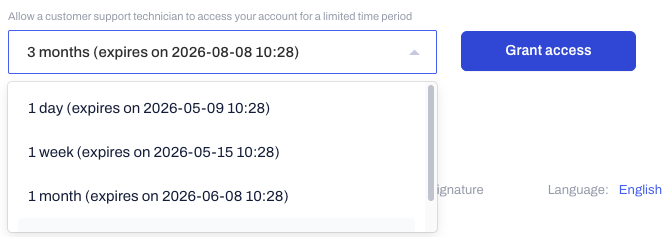
Click the blue Grant access blue button to confirm.
How to revoke granted access
If you need to remove granted remote access before the selected time frame expires, you can do so at any time:
Click on your profile icon in the top right corner and select Profile settings from the menu.
Scroll down to the Grant access for customer support section.
Click the red Revoke access button to disable the granted remote access immediately.

Pro-tip: Granting access via this feature follows strict security protocols, meaning no login credentials or sensitive information are being exchanged. The support technician logs in securely from our server and automatically loses access once your selected time frame expires or you revoke the given access.
Related articles
Manage your notification settings
How to manage your contact list
How to delete or deactivate your Contractbook profile
Was this article helpful?
That’s Great!
Thank you for your feedback
Sorry! We couldn't be helpful
Thank you for your feedback
Feedback sent
We appreciate your effort and will try to fix the article