Learn how to populate shared Spaces with contracts and templates to collaborate efficiently with other Users in your company.
How to Add Contracts to Shared Spaces
Populating your shared Contract Spaces ensures your company maintains centralized access to all legal documents. Use the following methods to add contracts to a Space:
Create New Drafts: Open the shared Space and click Create new to draft a contract directly within that specific Space.
Move Existing Contracts: Select existing contracts from your Private Space (or another Space you manage) and move them into the shared Space.
Use AI Import: Upload legacy PDFs or Word documents using the AI Import tool to automatically extract metadata and save them as contracts within the shared Space.
Duplicate Contracts: Duplicate an existing contract and save the new copy directly into the shared Space.
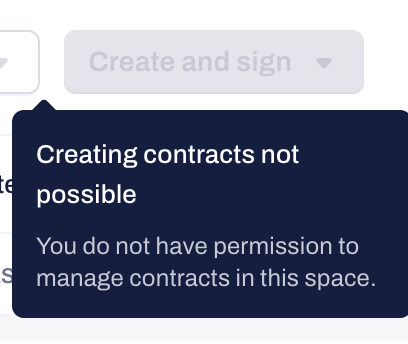
Note: You need Manage contracts permissions within the specific Space to add contracts. Without this Space-level permission, you will not be able to use the buttons to upload or create contracts, regardless of your global company user permissions.

How to Add Templates to Shared Spaces
Building a robust shared Template Space allows all Users to generate consistent, company-approved contracts. Use these methods to add templates:
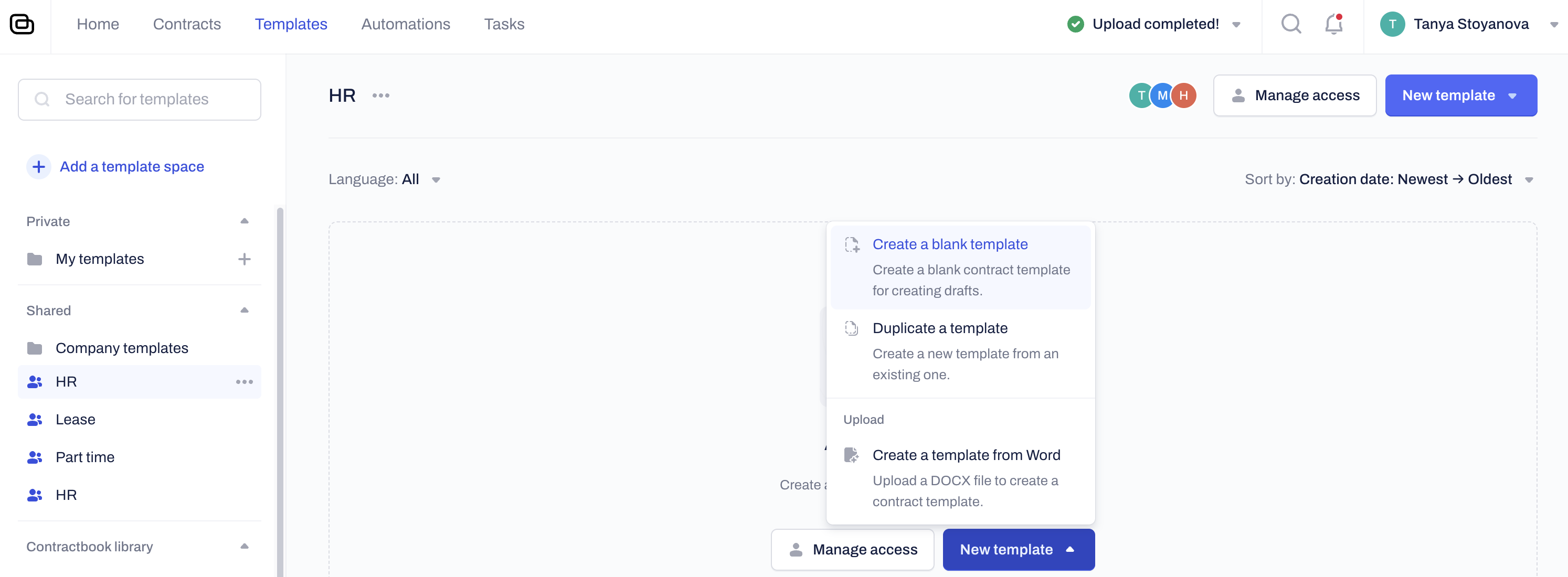
Create from Scratch: Open the shared Template Space and pick Create a blank template from the New template drop-down menu to build one from the ground up using the Contractbook editor:
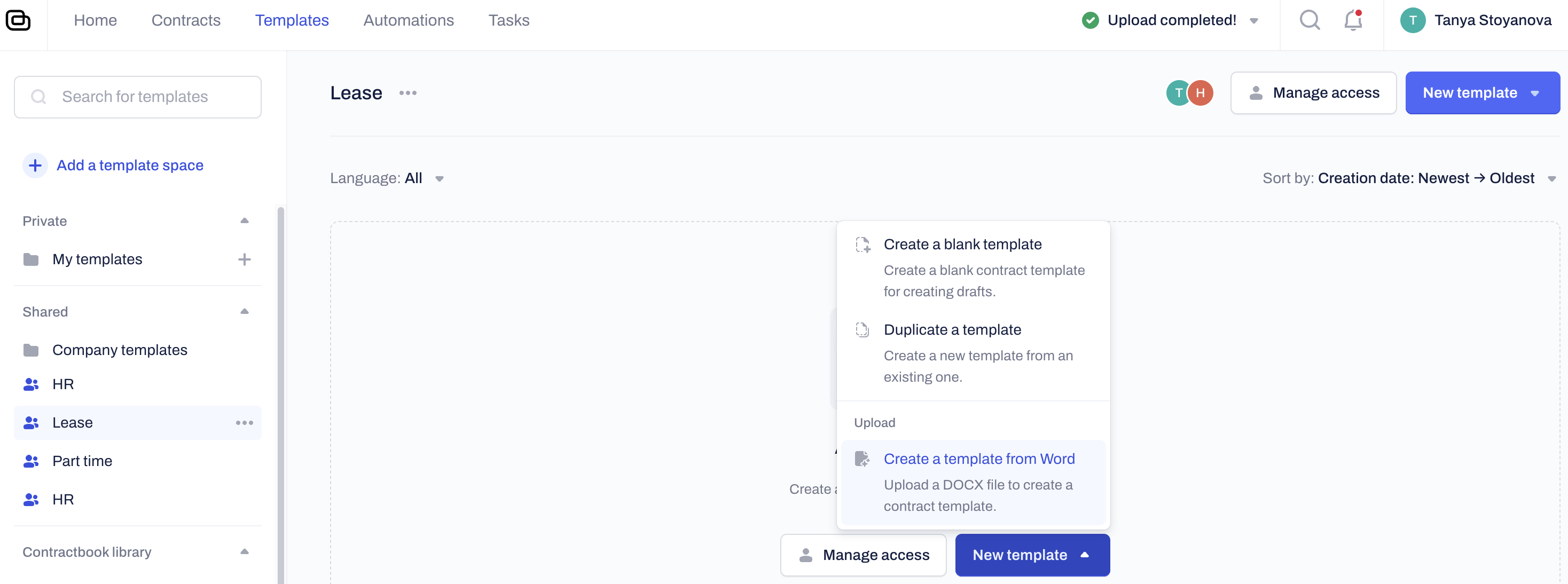
Upload Word Documents: Upload an existing .docx file. The system will convert your Word document into an editable template within the Shared Space:
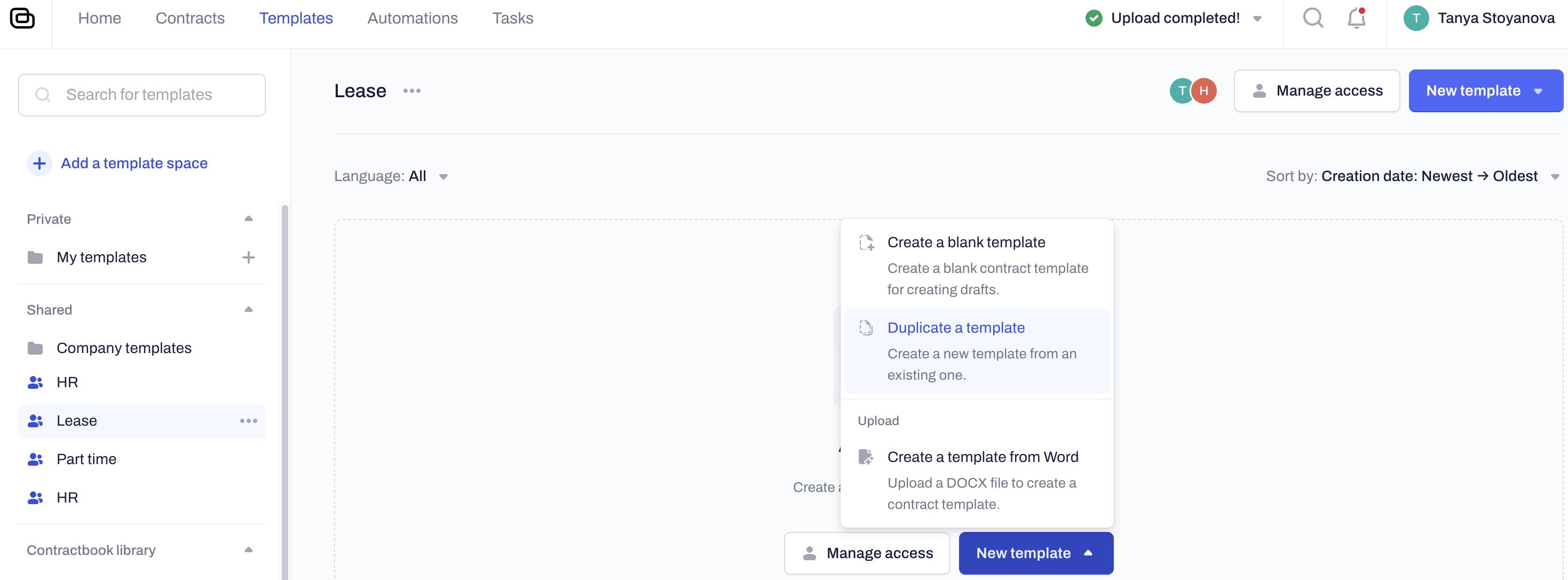
Create a template from an existing one:
Create a duplicate of any of your Private Templates.
Browse your Company Shared Templates and pick a template to duplicate within the Space.
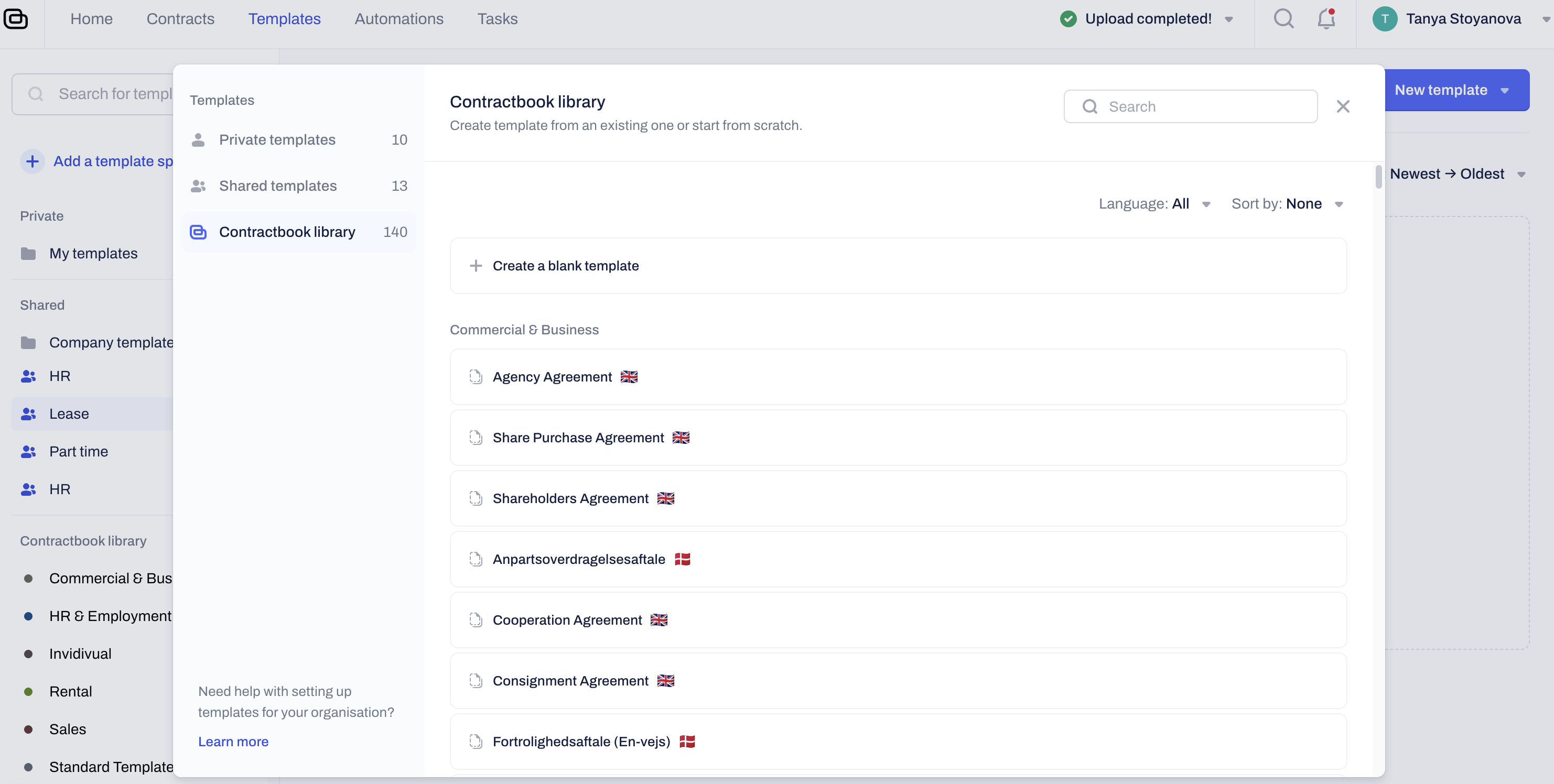
- Use the Contractbook Library:
Browse the Contractbook Template Library and add pre-made, lawyer-approved templates directly to your shared Space.
Note: You need Manage templates permissions within the specific Space to add templates. Without this Space-level permission, you will not see the buttons to Add templates, regardless of your global company user permissions.
Sharing the Spaces with Your Company
Contracts and Templates only become collaborative when you share the Space containing them.
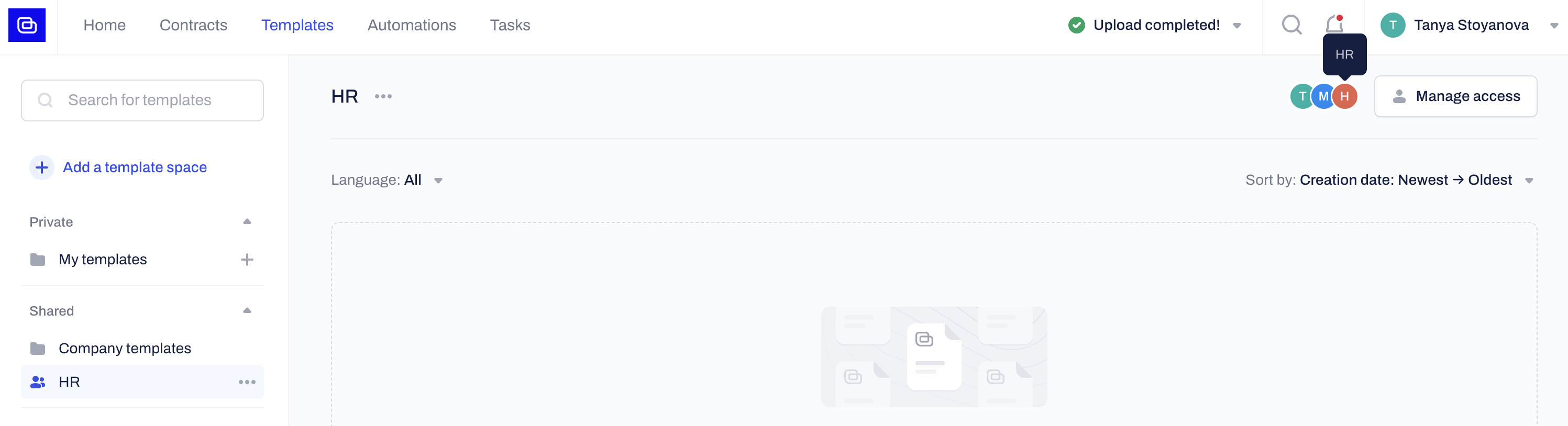
Manage Access: Open the Space and click Manage access to invite others.
Add Users: Search for and add individual Users within your company.
Add User Groups: Assign a User Group to the Space to grant document access to multiple users at once, ensuring consistent permissions across departments.
Pro-tip: Always build your company's core templates in a shared Template Space rather than your Private Space. This ensures that all Users can access the most up-to-date versions for their daily work and automated workflows.
Note: User Groups are an exclusive feature available on our Accelerate plan. If you do not see this option on your end and wish to add it to your current plan, reach out to your Customer Success Manager or contact our Support Team.
Related Articles
Was this article helpful?
That’s Great!
Thank you for your feedback
Sorry! We couldn't be helpful
Thank you for your feedback
Feedback sent
We appreciate your effort and will try to fix the article