This article explains how to manage Users access to contracts and templates using Spaces.
You will learn how to add specific Users and User Groups to Shared Spaces to ensure secure company-wide access and efficient workflow.
Overview of Spaces
Working within shared Contract and Template Spaces ensures your company maintains full rights over all documents created by Company Users. By using shared spaces, you also enable everyone in a given User Group to use the same templates and contracts with the same permissions.
Note:
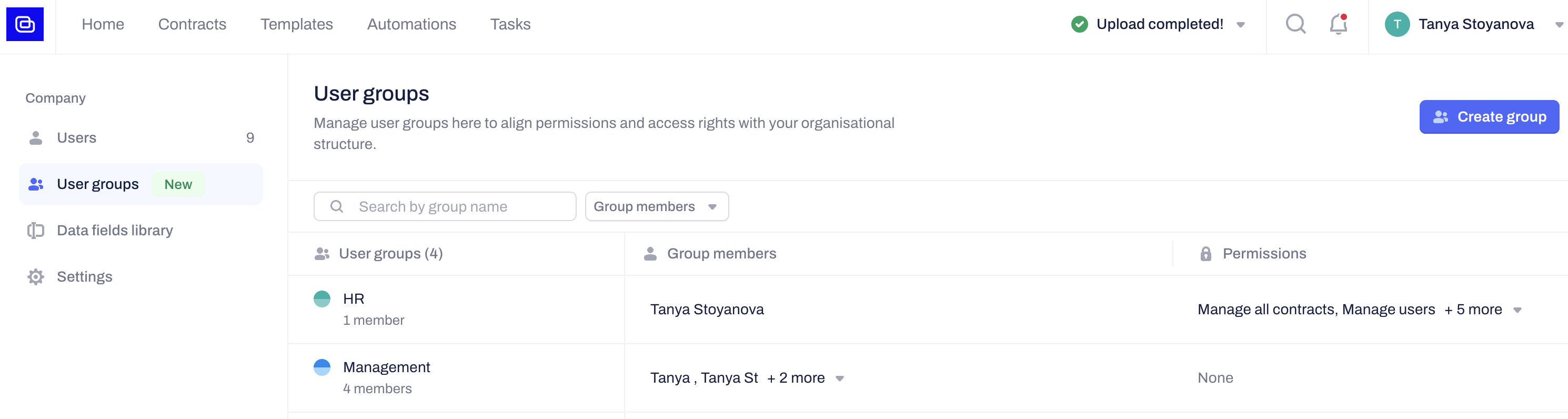
- User Groups ensures that when a new employee joins your Company, they instantly gain access to all the relevant documents and templates they need without manual permissions setup.
- User Groups are an exclusive feature available on our Accelerate plan. To add this feature to your Centralize plan, reach out to your Customer Success Manager or contact our Support Team.
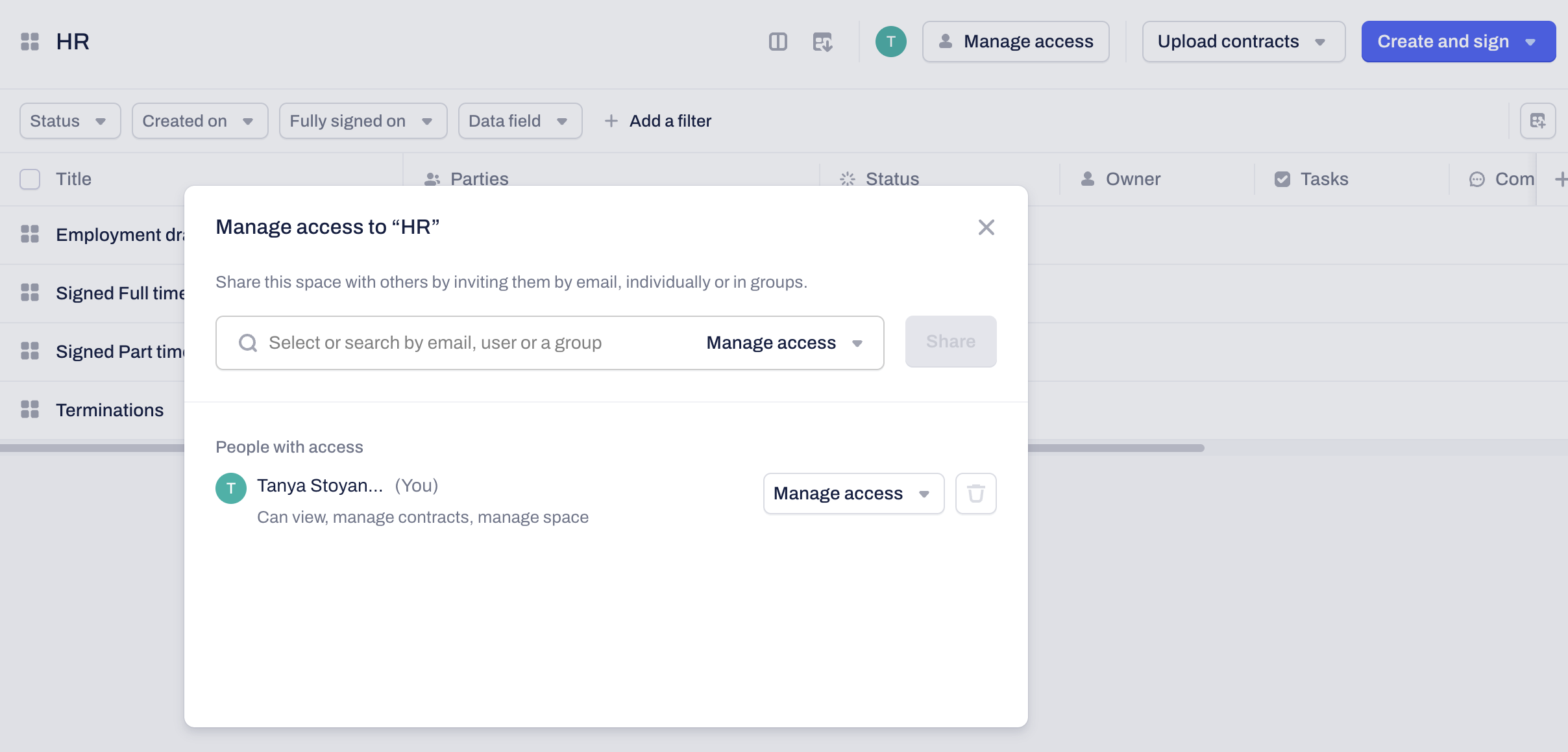
While every user has the ability to create Private Spaces for individual work, these remain hidden from others. A space only becomes shared when you explicitly invite other Company, External Users, or entire User Groups to it.
How to Manage Access in Spaces
To modify access, you must either create the Space or hold Manage Space permissions for it. You do not need global "Manage users" company permissions to view the list of users and groups within the Spaces access panel.
Follow these steps to grant new or modify existing Spaces access:
Locate the Space: Navigate to the Contracts or Templates tab in the top menu.
Open the Access Panel: Click the three dots next to the Space name in the sidebar and select Manage access, OR click the Manage access button located at the top of an opened Space.
Add Users:
Select an already active User from your Company.
Select a User Group to assign permissions at scale.
Manually type an email address to add external users (outside of your company) as viewers.
Assign Permissions: Choose the needed access level for the selected users, groups, or external viewers.
Save Changes: Confirm your selection to update the access list immediately:
Best Practices for Company Security
- Centralize Assets: Adding templates and contracts into shared Spaces prevents situations in which important documents are stuck in private Spaces.
- Consistent Space Permissions:
- Assign User Groups to shared Spaces to guarantee uniform document access across your organization. This eliminates the risk of missing individual users and ensures everyone has the exact granular editorial rights needed to collaborate on company templates and contracts.
Automation Ready: Templates stored in Shared Spaces are accessible for company-wide automations.
Access for Users without permissions
If a given user has all their permission toggles toggled off, this means that they cannot see or manage any of your company contracts, data fields, AI contract types, or users.
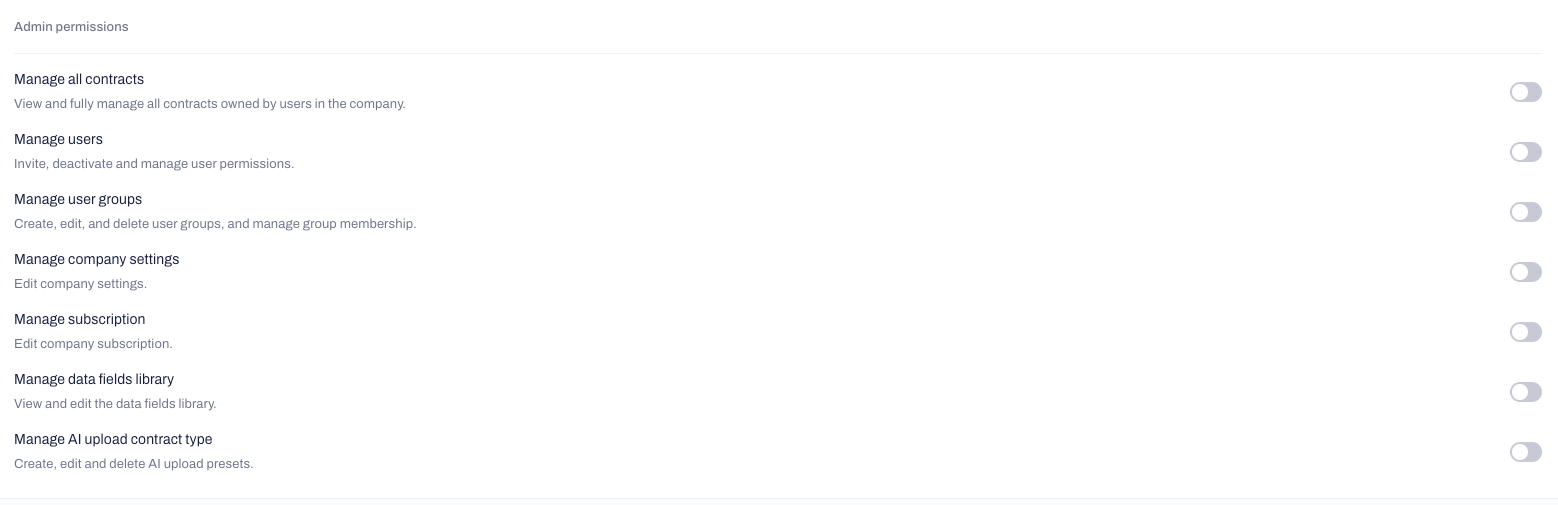
To allow these users to view or edit specific templates and contracts, they can get a specific type of access through your company's Shared Contract and Template spaces: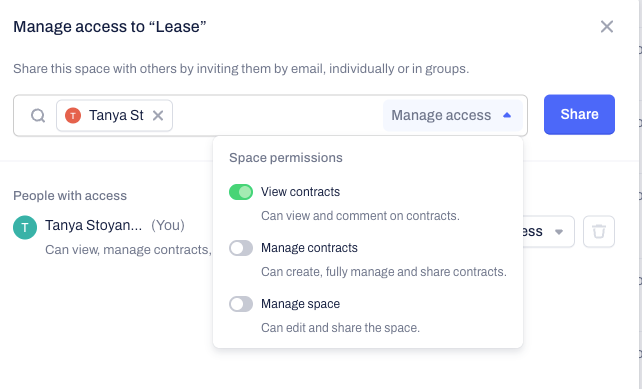
Related Articles
Was this article helpful?
That’s Great!
Thank you for your feedback
Sorry! We couldn't be helpful
Thank you for your feedback
Feedback sent
We appreciate your effort and will try to fix the article