Managing pending invitations requires specific permissions. To resend or revoke an invite entirely, the user should not have accepted it yet, and you must have rights to "Manage users". Ensure you have this permission enabled before proceeding, or contact your Company administrator for help.
Follow these steps to manage pending user invitations:
Click on your profile icon in the top right corner and select Users from the menu.
Change the status filter to invited to view all users with pending invitations.
Click the three-dot contextual menu next to the pending user’s email address.
Select Resend or Revoke invitation from the dropdown menu.
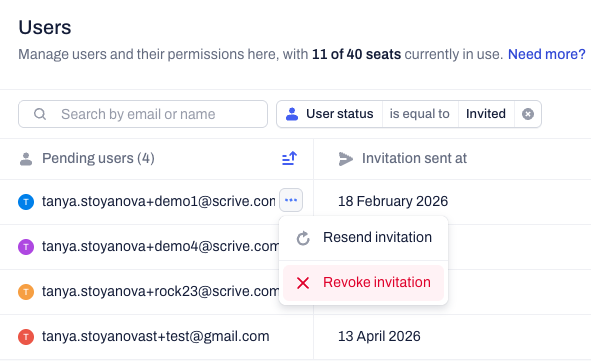
Revoking an invitation
Revoking a pending invitation immediately invalidates the original email link and frees up the reserved user seat in your company subscription.
Frequently asked questions
Why can't I see the option to invite users?
If you do not see the option to invite new users, you likely do not have the needed permissions. Reach out to your Company administrator and ask them to enable the "Manage users" permission on your account.
Why the Invite new users button is grey instead of blue?
This means that your Company has reached its seat limit. Check the Seats count at the top of the Users page to see how many seats are currently in use (e.g., "10 of 10 seats currently in use").
What to do if I don't have available seats left?
Reach out to our Support team or contact your Customer Success Manager to request additional seats for your Company subscription.
Pro-tip:
Streamline your onboarding by using User groups. Note that this is a premium feature; if it is not visible in your Company menu, please contact our support team or your Customer Success Manager to discuss an upgrade. By setting up your groups before inviting new users, you can grant instant, collective access to shared Spaces the moment they accept their invitation.
Related articles
- Understand and manage user permissions
- Create and manage User groups
- Remove or deactivate a company user
Was this article helpful?
That’s Great!
Thank you for your feedback
Sorry! We couldn't be helpful
Thank you for your feedback
Feedback sent
We appreciate your effort and will try to fix the article