Learn how to update your personal details, change your password, and configure your login and security preferences.
Update Personal and Company Details
Keeping your profile updated will help you have pre-filled information in the party and signee sections of your contracts.
Click on your profile icon in the top right-hand corner.
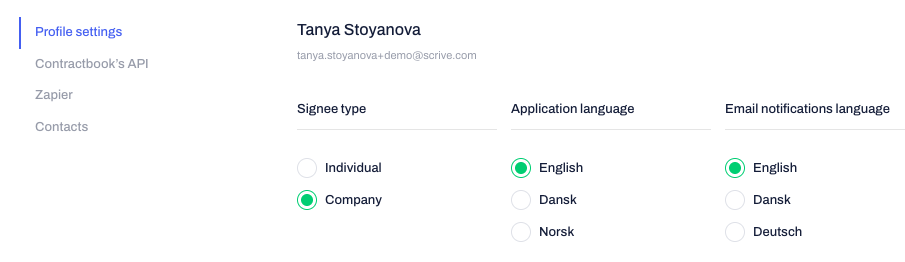
Select Profile settings from the dropdown menu.
Select your Signee type, Application language, and Email notifications language.
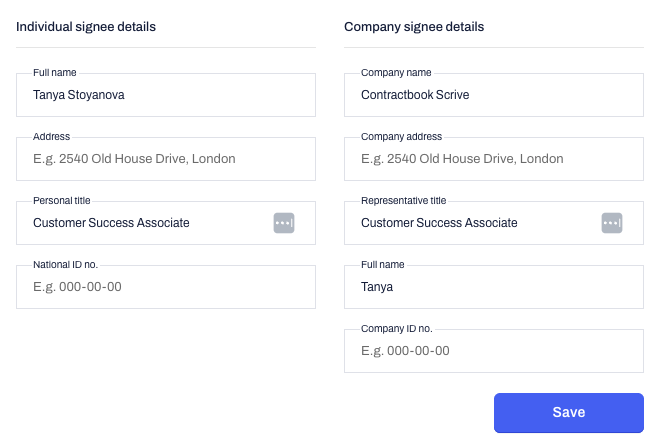
Scroll down to the Individual and Company Signee details sections.
Enter your updated information.
Click Save to confirm your changes.

Change Your Password
Navigate to Profile settings from the top right-hand menu.
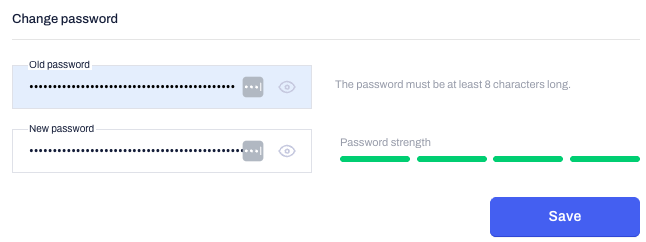
Scroll down to the Change password section.
Enter your current password to verify your identity.
Enter your new password.
Click Save to apply this change:
Manage Two-Factor Authentication (2FA)
Two-factor authentication adds an extra layer of security and is enabled by default for all Contractbook users.
Go to your Profile settings.
Scroll down to the Security section.
Click Disable email 2FA to turn the default feature off, or Enable email 2FA to turn it back on.
Confirm your choice in the pop-up window:

Important:
2FA only applies to email and password logins. It cannot be configured if you log in using Google or Microsoft SSO.
Change Your Login Method
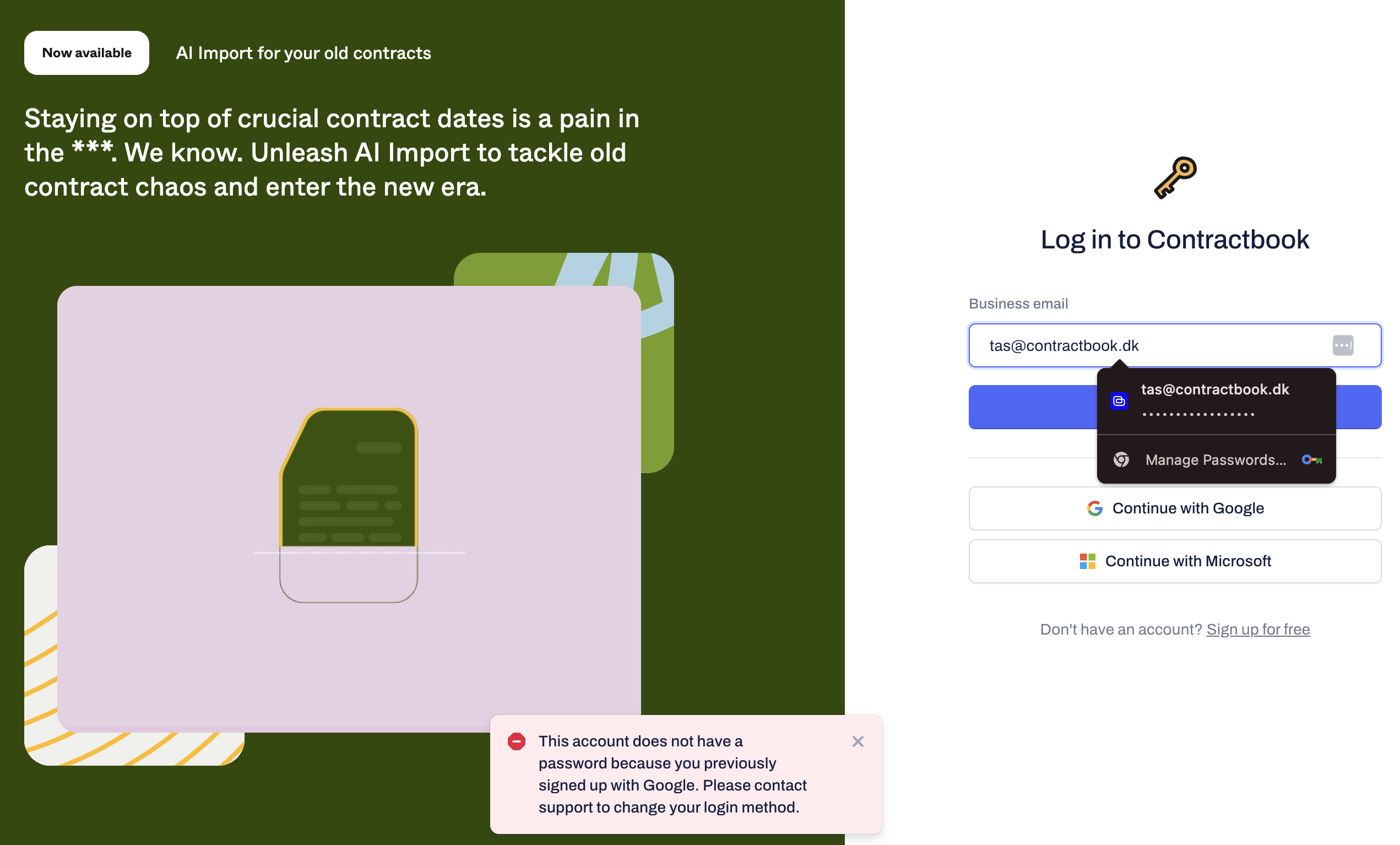
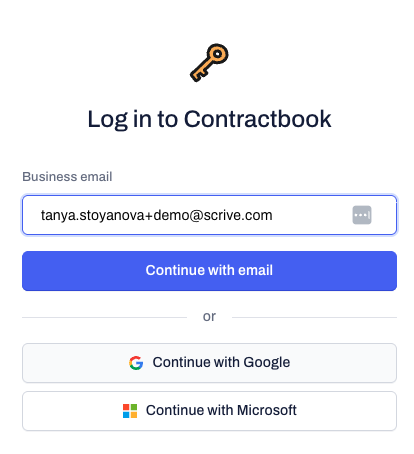
Navigate to the Contractbook login page (Log out of your account if you are currently using it).
Select Login with Google or Login with Microsoft to set a new default login method.
Follow the authentication prompts for the selected provider.
Note:
If you wish to revert from Google or Microsoft SSO back to standard email and password login, please contact our Support Team for assistance.
Private security changes
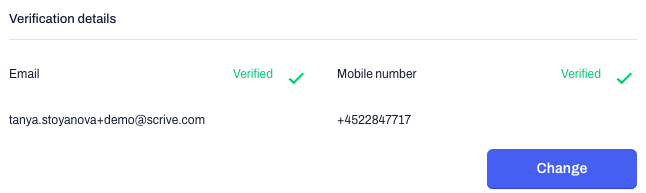
You can also change your account verification details and log out of all devices you have accessed with Contractbook from the profile settings section:

Review Company User Login Methods
Company owners and admins can monitor the security configurations of all users across the company and within specific user groups.
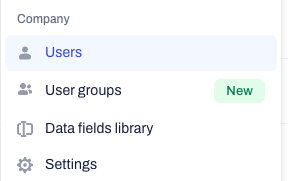
Navigate to the Company tab from the main menu.
Locate the user within the user groups or the main company overview.
Hover over the security icon next to the user's profile picture.
A green indicator means the user has 2FA enabled or uses SSO. A grey indicator means 2FA is disabled.
Related Articles
Was this article helpful?
That’s Great!
Thank you for your feedback
Sorry! We couldn't be helpful
Thank you for your feedback
Feedback sent
We appreciate your effort and will try to fix the article