Setting up Single Sign-On (SSO) and SCIM provisioning requires specific permissions. To connect your Identity Provider and automate account management, you must have rights to “Manage company settings”, “Manage users”, and “Manage user groups”. Ensure you have these permissions enabled before proceeding, or contact your Company administrator for help.
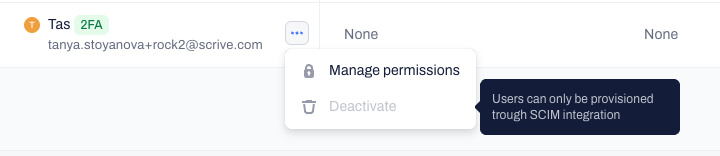
Once SSO and SCIM provisioning are active, you can no longer invite or manage users through the Contractbook Company section of your account settings. All these actions must be handled through your Identity Provider instead.
General setup workflow
To establish a secure connection between Contractbook and your Identity Provider, follow this workflow:
Request a SCIM API key: For security reasons, API keys for SSO and SCIM integrations are generated for you by the Contractbook Support team. Reach out to our support team for assistance.
Configure your Identity Provider: Use the token provided by Support to set up Contractbook as an authorized application within Okta or Microsoft Entra ID.
Map your attributes: Ensure that fields like email and username are correctly mapped between your IdP and Contractbook to prevent login errors.
Enable SCIM synchronization: Automate account creation and permission distribution by pushing your Users and User groups from your provider to Contractbook.
Verify Company emails: Review and verify that the email addresses in your Identity Provider match the ones users will use for Contractbook login to avoid any duplicate accounts.
Frequently asked questions
Why can't I edit users directly in Contractbook anymore?
When your integration is live, the Users and User groups pages in Contractbook become "read-only" for most administrative actions. You will still be able to view users, but any changes to permissions, assigned groups, new invitations, etc. must be performed in your Identity Provider (IdP) and allowed to sync.
What happens to Contractbook access when an employee leaves?
Because your IdP acts as the central source of truth, when an account is deactivated there, their access to Contractbook is revoked instantly.
How do I give new hires the correct permissions automatically?
Work with User groups in your Identity Provider to manage permissions at scale. By assigning a group in Okta or Entra ID to a specific shared space in Contractbook, employees will automatically receive the correct type of contracts and templates access without manual work.
Why don't I have User groups in my account?
User groups is a premium feature that is not included in all plans. If you do not see the option to manage user groups under the Company section of your account settings, please reach out to your Customer Success Manager for more information on how to get this feature.
Related articles
Set up SSO and provisioning with MS Entra ID
Okta Single Sign-On configuration guide
How to generate API keys on Contractbook
Was this article helpful?
That’s Great!
Thank you for your feedback
Sorry! We couldn't be helpful
Thank you for your feedback
Feedback sent
We appreciate your effort and will try to fix the article