Managing the Data Fields Library
Use the Data Fields Library to organize, edit, and maintain global control over all data fields used across your company’s templates, contracts, AI imports, and automations.
Accessing the Data Fields Library
To manage your company's data fields, you must have the correct user permissions.
Ensure the "Manage data fields library" permission is toggled on for your Contractbook profile.
Note: Users with this permission toggled off cannot view or manage the data fields. Contact a user with admin rights to update your User permissions if you need access.

Navigate to Company settings and click on the Data fields library section:
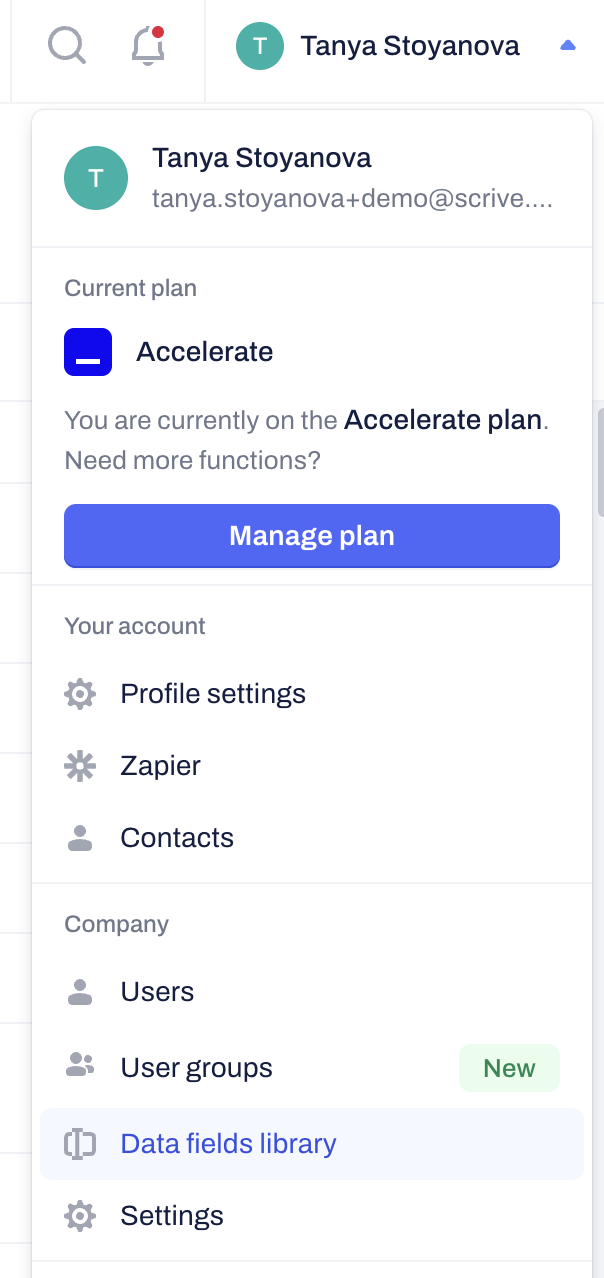
- This page allows you to access all your company's data fields:
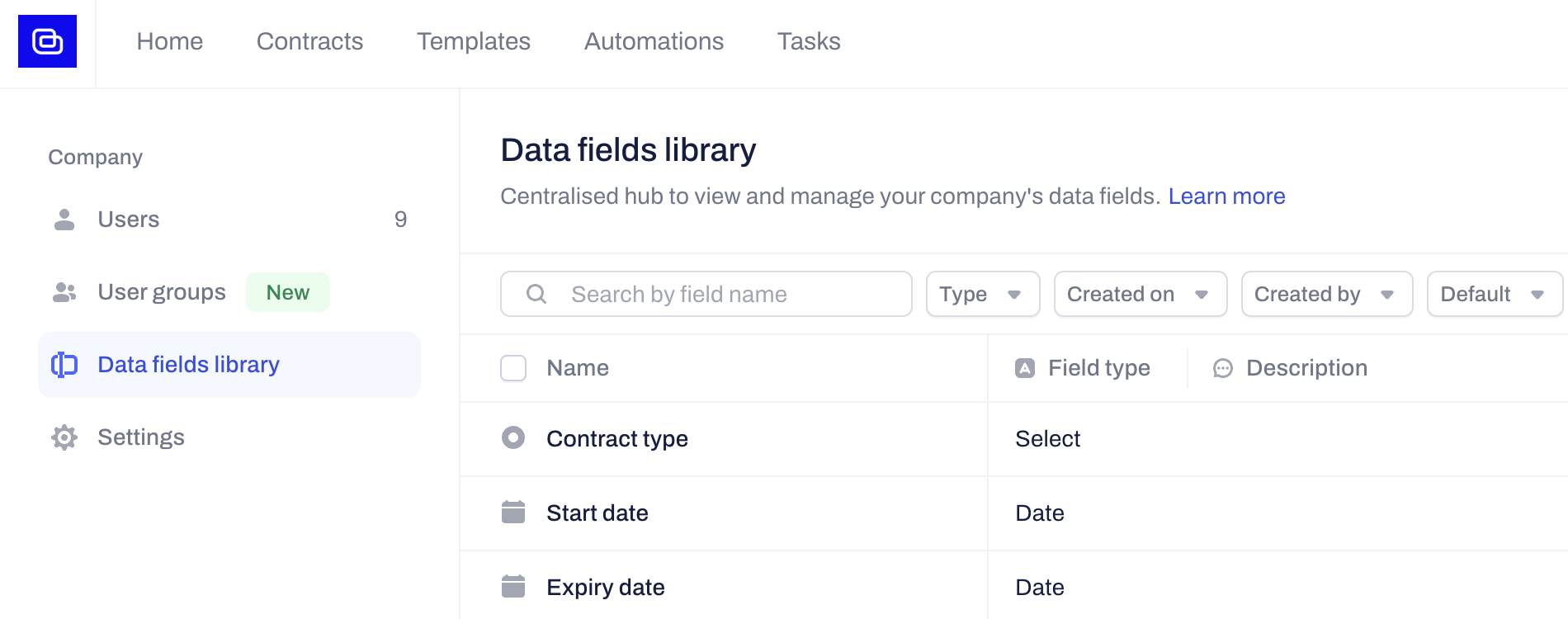
Creating and Editing Data Fields
Centralizing your contracts data begins with creating unique, standardized data fields. Users with the Manage data fields library permission can add or modify fields:
Click the + New data field button.
Enter a unique name and select the field type.
To edit an existing field, click the three-dot icon next to the name and select Edit:
Setting Due Date Reminders
Users with the Manage data fields library permission can transform any custom date field into a "Due Date" directly from the company data fields page to track deadlines.
Open the Edit panel for any date field.
Toggle the Due Date setting to On.
Save your changes.
Pro-tip: Once enabled, these fields will be color-coded in your contract list and display a countdown (e.g., "in 5 days") to help you prioritize upcoming obligations.
Managing Default Data Fields
Users with the Manage data fields library permission enabled can set "Default" fields. These fields automatically appear in all new templates, drafts, and contracts created by anyone in the company to ensure contract data standardization:
Click on the three-dot icon next to a specific field:
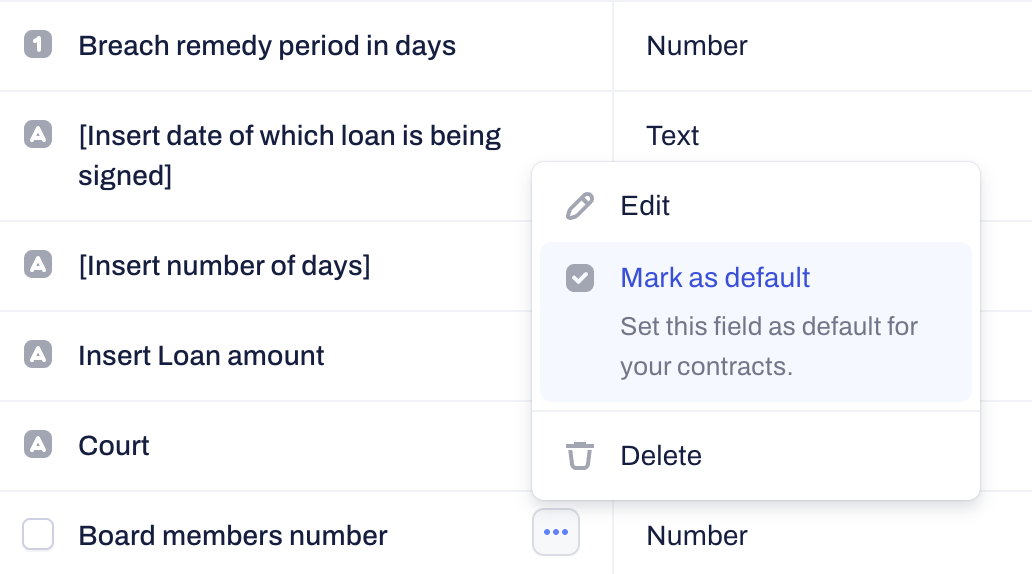
Select Mark as default.
Choose whether to apply this to future documents only or all existing templates and drafts:
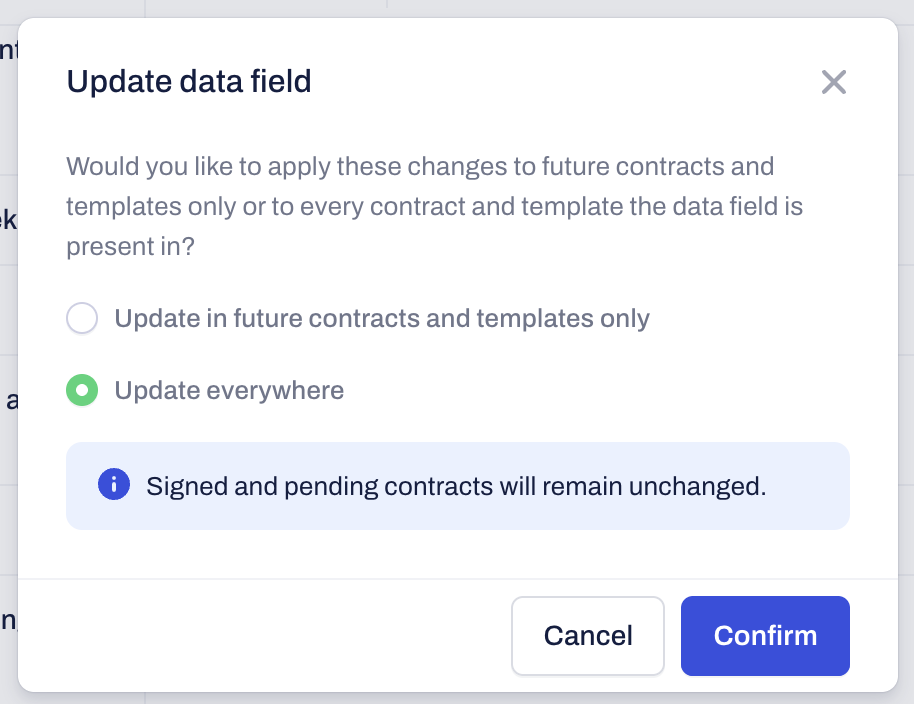
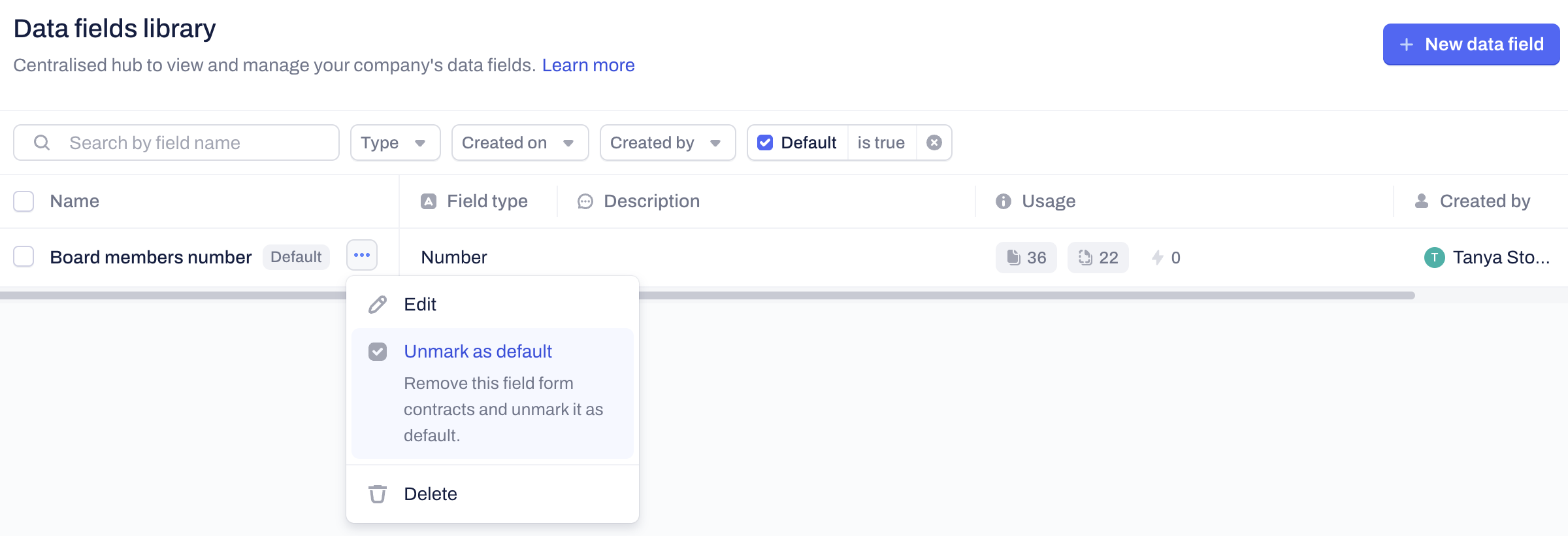
To remove the Default status, select Unmark as default from the same menu:
You can pick to unmark the field as default in future contracts and templates only, or in every contract and template the data field is present in:
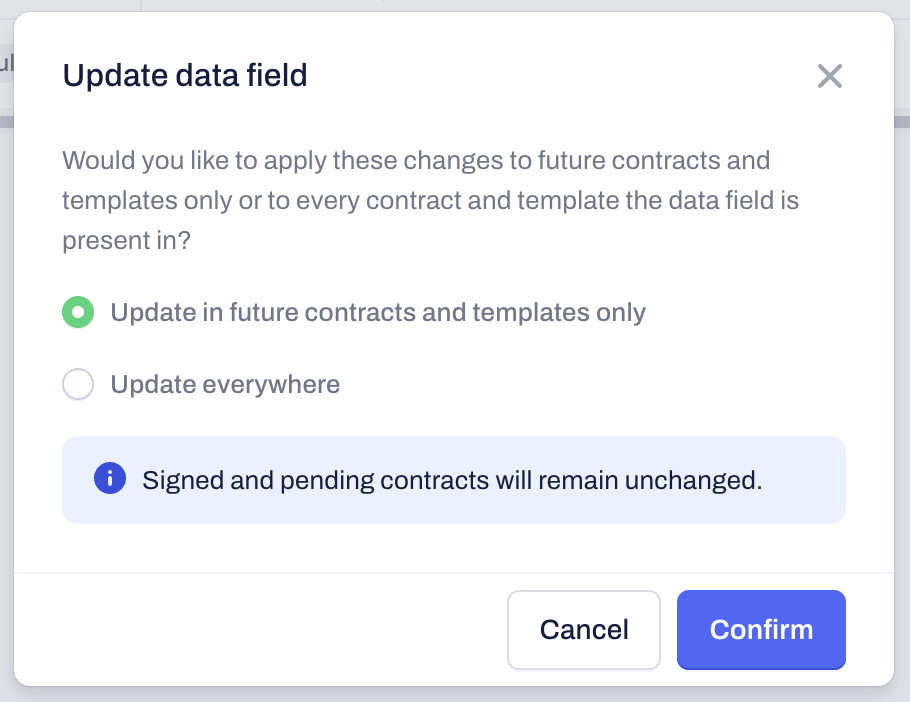
Signed and pending contracts will remain unchanged.
Merging Data Fields
Users with the Manage data fields library permission can consolidate similar fields to eliminate duplicates and ensure consistent data tracking. You can only merge two fields of the same type at once.
Option 1: Bulk Select
Select the checkboxes for two data fields of the same type.
Click Merge in the contextual menu.
Verify the merge order (the top field will be deleted and replaced by the bottom field). Use Reverse order if necessary.
Click Continue and type MERGE for a final confirmation:
Option 2: Properties Panel
Click the name of the field you wish to remove.
In the Properties panel, click Merge field.
Search for and select the target field you want to keep.
Confirm the action by typing MERGE.
Note: If both fields exist in the same document with different values, the source field will be deleted instead of merged to prevent data loss.
Deleting Data Fields
Users with the Manage data fields library permission can clean up unused fields to maintain an efficient workflow.
Select the field(s) you wish to remove.
Click the trash icon or select Delete from the three-dot menu.
Type DELETE to confirm.
Warning: Fields currently assigned to collaborators or signees in active templates or drafts must be unassigned before they can be deleted. Once deleted, the field will appear highlighted in yellow within existing drafts and templates. You must replace or remove these yellow markers before sending those documents for signature.
Related Articles
Was this article helpful?
That’s Great!
Thank you for your feedback
Sorry! We couldn't be helpful
Thank you for your feedback
Feedback sent
We appreciate your effort and will try to fix the article