Learn how to invite new users to your company account and manage their access.
You must have the Manage users permission enabled on your account to perform the following actions.
Invite new users
To add new company users to your Contractbook account, follow these steps:
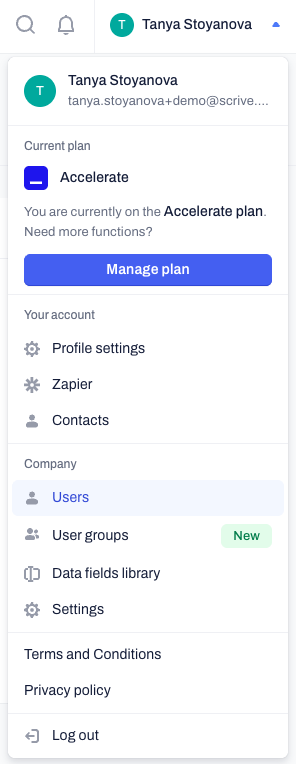
Click on your name/profile in the top right corner and select Users from the menu:
Select the option to invite a new user:

Enter the user's email address and send the invitation.
Manage pending invitations
If a user hasn't accepted their invitation yet, you can send them a reminder or revoke their invitation.
Navigate to the Users page under your Company account settings.
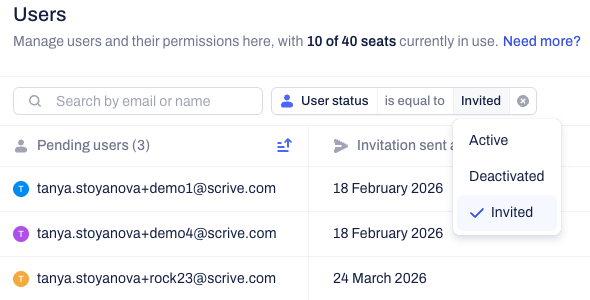
Change the status filter to Invited to view all pending users.
Click the three-dot menu next to the pending user's email address.
Select Resend or Revoke invitation from the dropdown menu.
Revoking a pending invitation immediately invalidates the email invite and frees up the seat in your plan.
Related Articles
- Fixing logo formatting error
- Company data fields library
- Email notification settings
- Calculating Company Usage
Frequently asked questions:
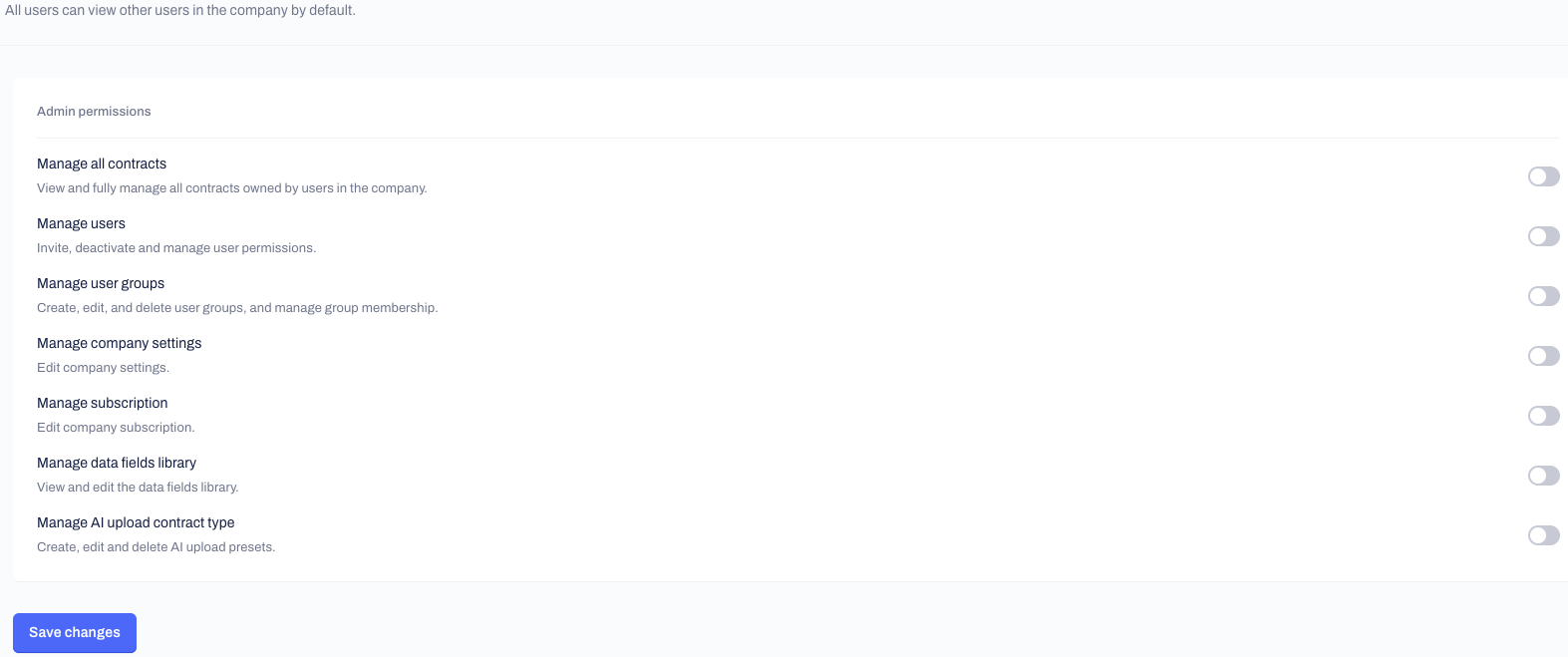
- How do I give a user access to specific contracts without granting global company permissions?
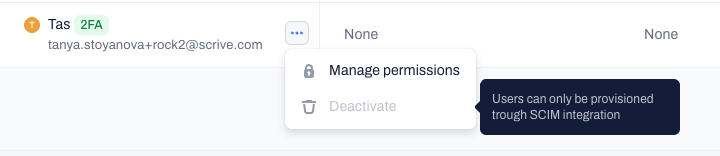
- How do I invite users if my company uses Okta or Microsoft Entra ID?

- Why is the "Invite new User" button grey?: You need available user seats in your current plan before sending out invitations. If the "Invite new User" button is grey instead of blue, this means that you need extra seats in your current company's setup.
- Where can I find my pending invitations?: To view users who haven't accepted their invitation yet, change the user status filter to invited.
Was this article helpful?
That’s Great!
Thank you for your feedback
Sorry! We couldn't be helpful
Thank you for your feedback
Feedback sent
We appreciate your effort and will try to fix the article