Learn how to assign users permissions and add them to user groups.
You must have the Manage users permission enabled on your account to perform the following actions.
User permissions
When configuring access for users, consider these key permission levels:
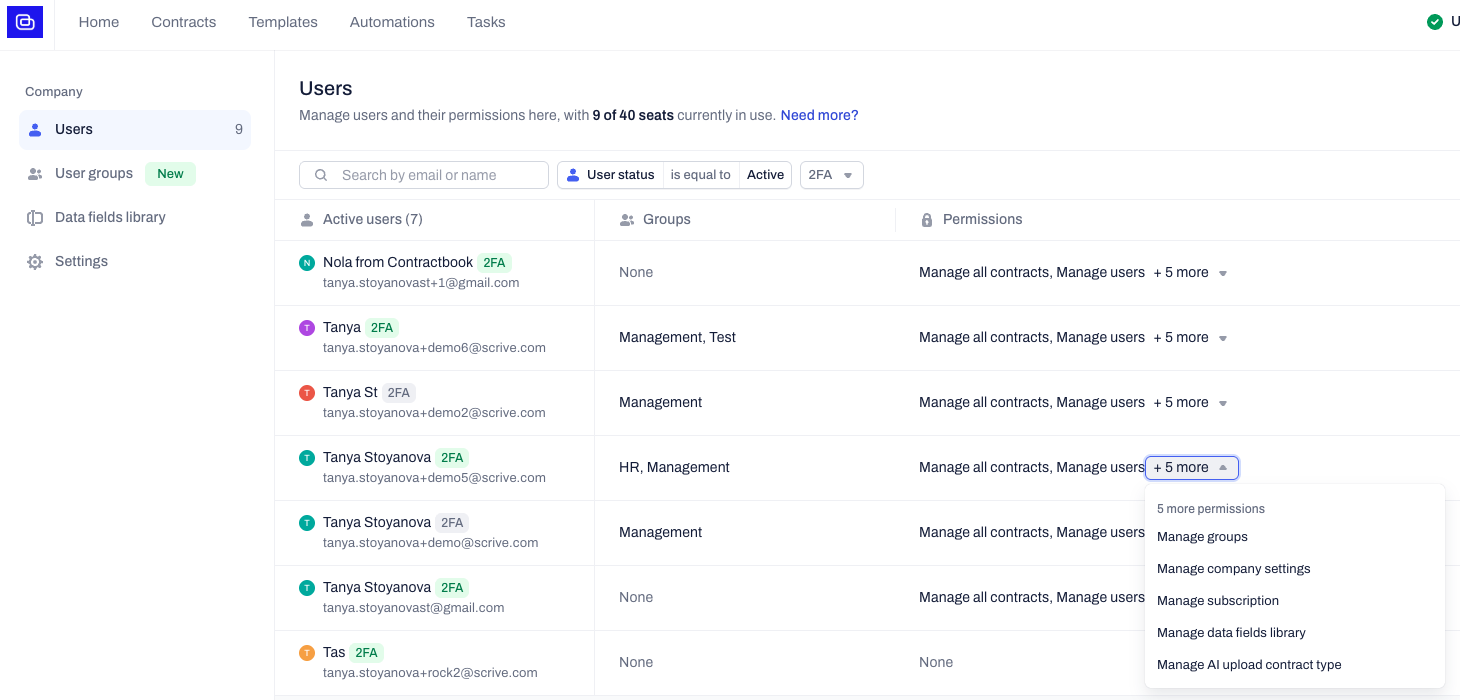
Manage all contracts: Enable this to let a user view, edit, delete, and share any contract created within the company. This automatically grants them access to the Company contracts view.
Manage data fields library: Allows users to view, add, and edit data fields for the entire company.
Manage AI upload contract types: Enables users to create, edit, or delete custom contract types used during AI imports.
Manage company settings: Grants access to update the company logo, name, and default date format.
Manage subscription: Permits users to view the company's plan and usage.
Edit user permissions
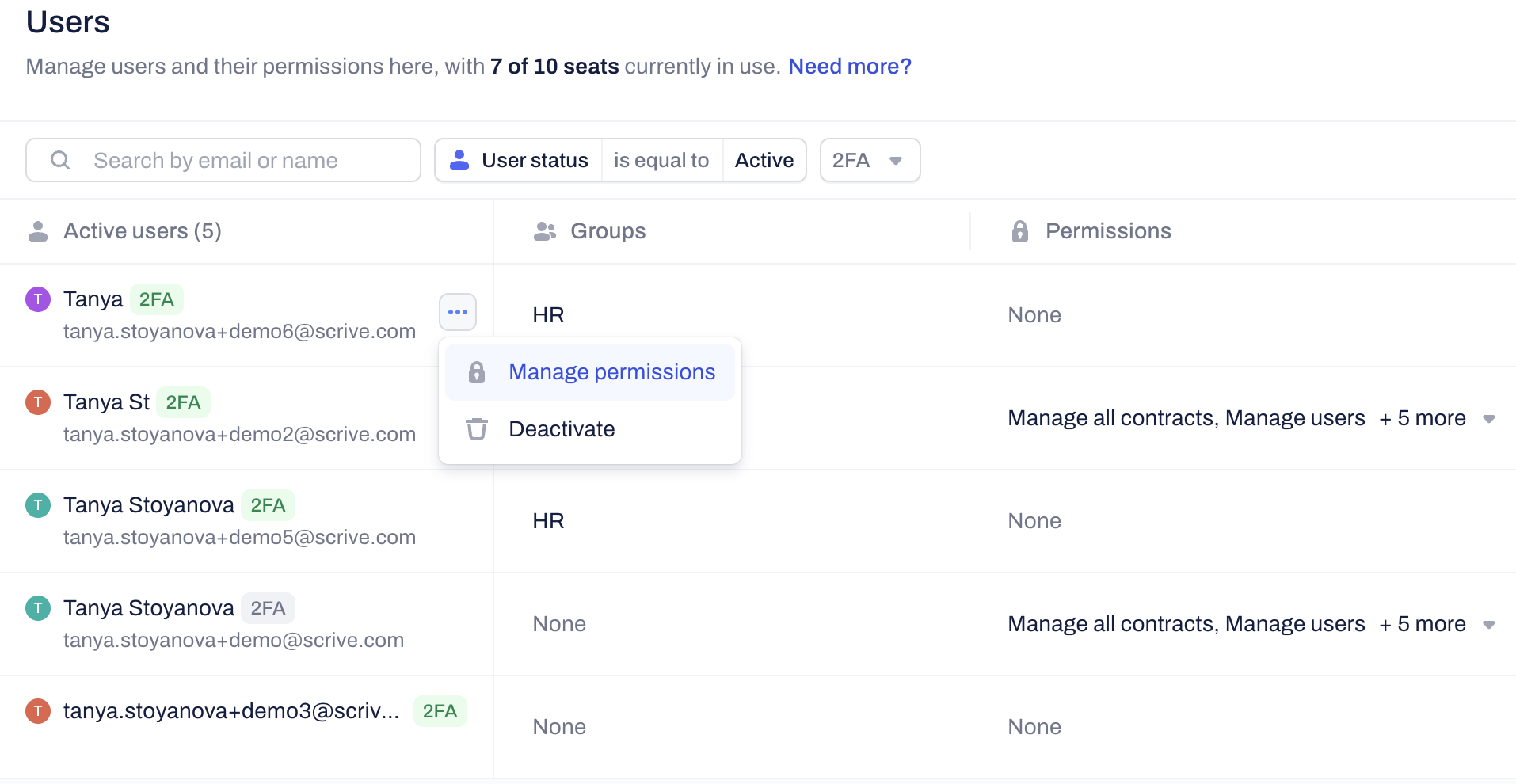
Once a user is invited, you can customize their access levels.
Click on your name/profile in the top right corner and select Users from the menu.
Locate the specific user in the overview.
Click Manage permissions next to their account profile.
Toggle the specific permissions on or off:
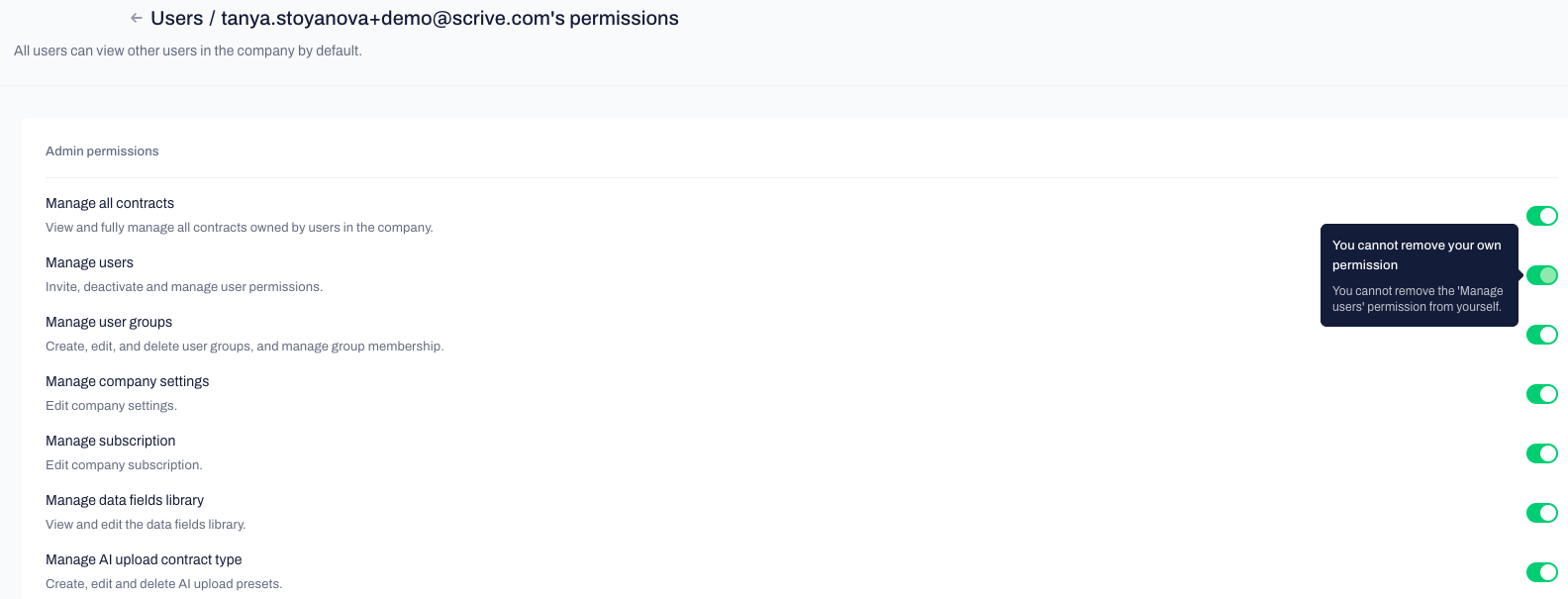
- Apply any changes by clicking on the Save changes button.
Create user groups
You can group active users by department, seniority, or project and grant them collective access to specific contracts and templates.
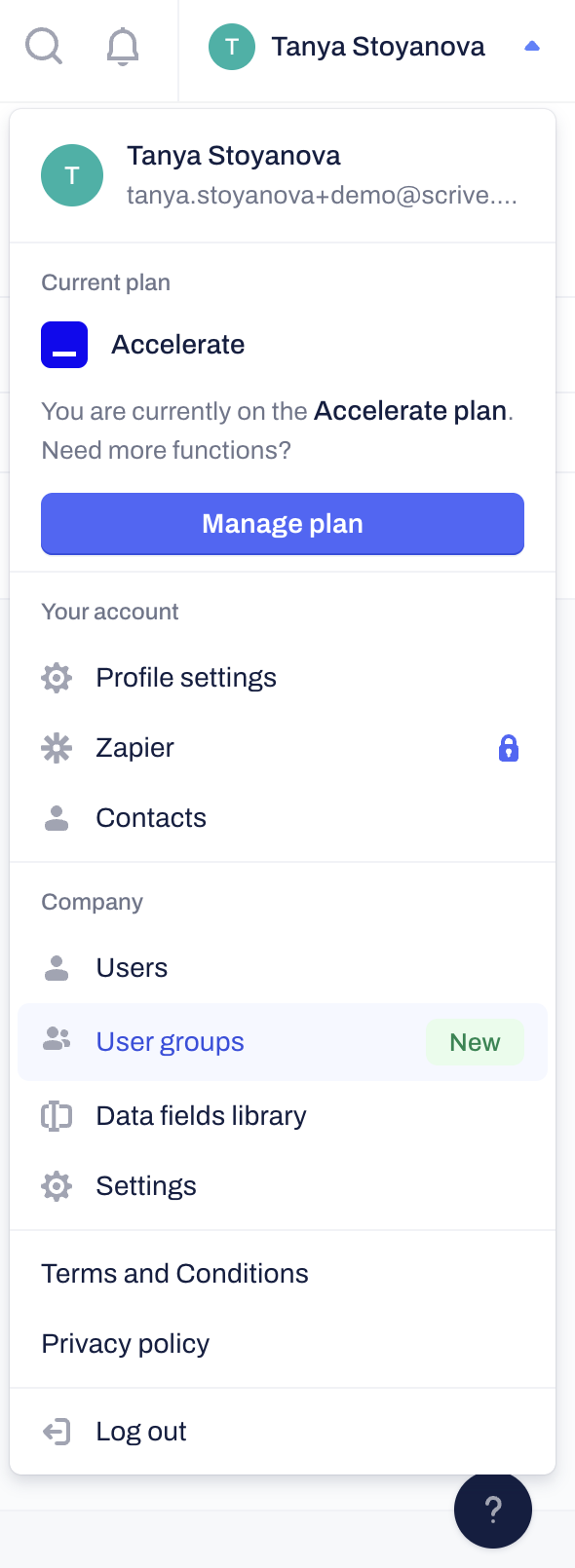
- Click on your name/profile in the top right corner and select User groups from the dropdown menu:
- Create a new group: Click on the "Create Group" button.
- Name and customize: Enter a name and pick a color for your group.
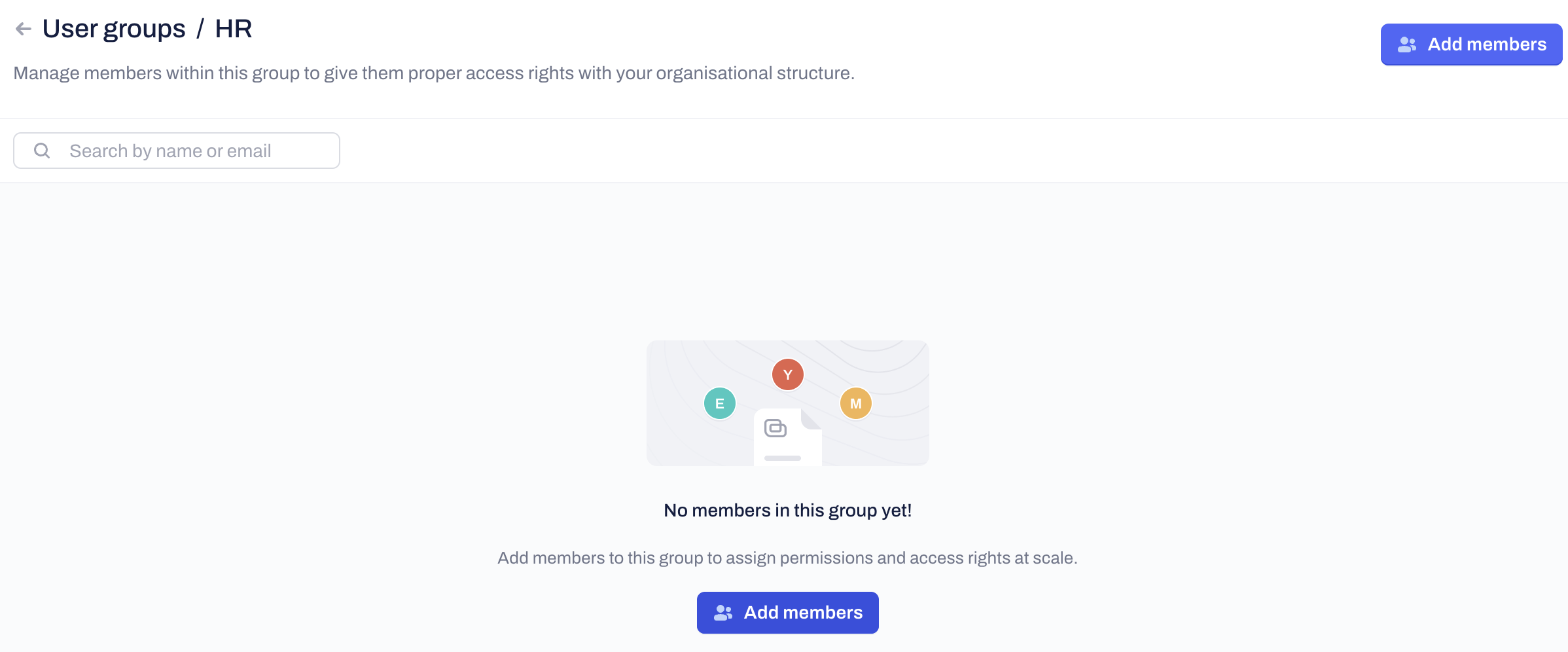
- Add users: Click on the "Add Members" button. Here you will see a list of all active company users.
Managing granular permissions
- If specific company users require extra or fewer permissions compared to those given to the User group they belong to, you can assign these to their individual user accounts.
- To do this, go to Users from the dropdown menu instead of User Groups, locate the user, and update their permissions.
Related Articles
- How to structure and share spaces
- Move contracts to spaces automatically
- Invite users to your Company
- Managing Access in Contract and Template Space
Frequently asked questions:
- Can I change a group's permission level later?: Yes. You can return to the "Manage Access" settings of any Space and adjust the permission level for the entire group at once.
Deleting members of User Groups: You can remove existing company users from the User Group they are assigned to from the "Manage members" option within the User Groups menu:
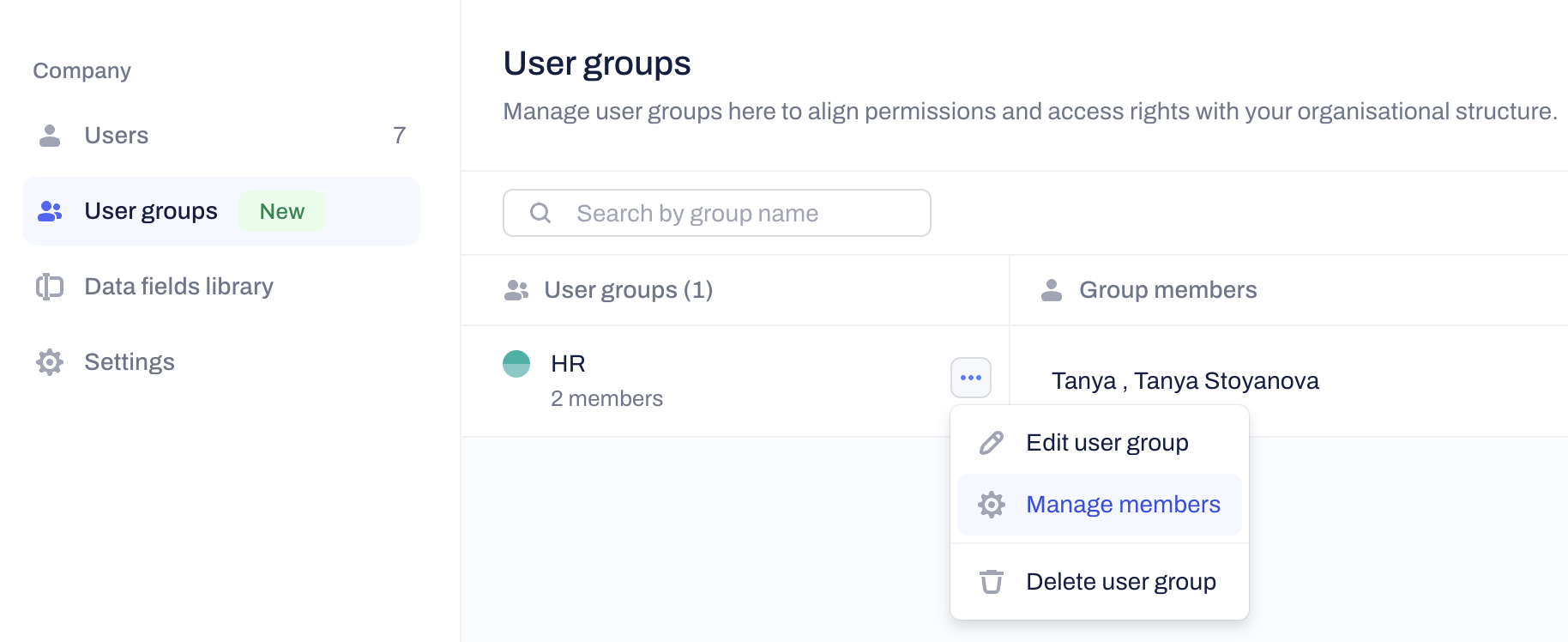
- What happens if I remove someone from a User Group?: If a user is removed from a group, they will lose any access granted through the User group permissions menu.
- If you have added the same user to a specific Contract or Template Space, their access rights to that Space will remain unchanged.

Was this article helpful?
That’s Great!
Thank you for your feedback
Sorry! We couldn't be helpful
Thank you for your feedback
Feedback sent
We appreciate your effort and will try to fix the article