Move contracts to spaces automatically
Learn how to build automations that automatically move contracts to the correct Shared Spaces or dynamically create new ones based on your data criteria.
Note: Automations are an exclusive feature only available in some plans. To purchase this feature as an add-on, reach out to your Customer Success Manager or contact our Support Team.
Setting up the automation
You can start this automation using any trigger that fits your company's needs. In this guide, we use the Contract verified trigger to organize AI-imported contracts into shared spaces automatically.
Follow these steps to build the workflow:
- Create the automation: Navigate to the Automations tab in the top menu and click Create new.
- Select the trigger: Choose your desired starting event. For the example we configure, select Contract verified to trigger the workflow whenever an AI-imported contract is verified.
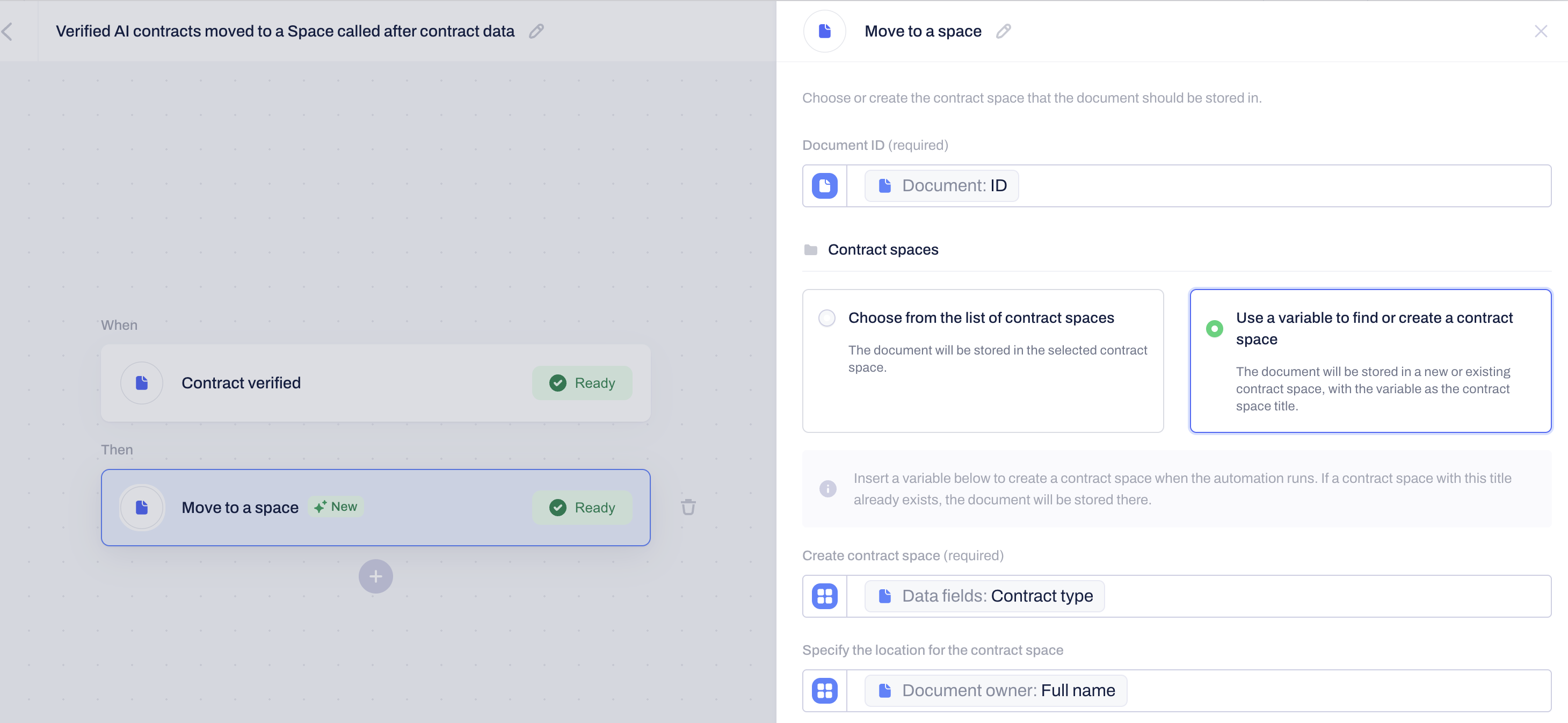
- Configure the action: Search for and select the Move to a space action. Connect the Document ID from your trigger step so the system knows exactly which contract to move.
- Choose the destination Space:
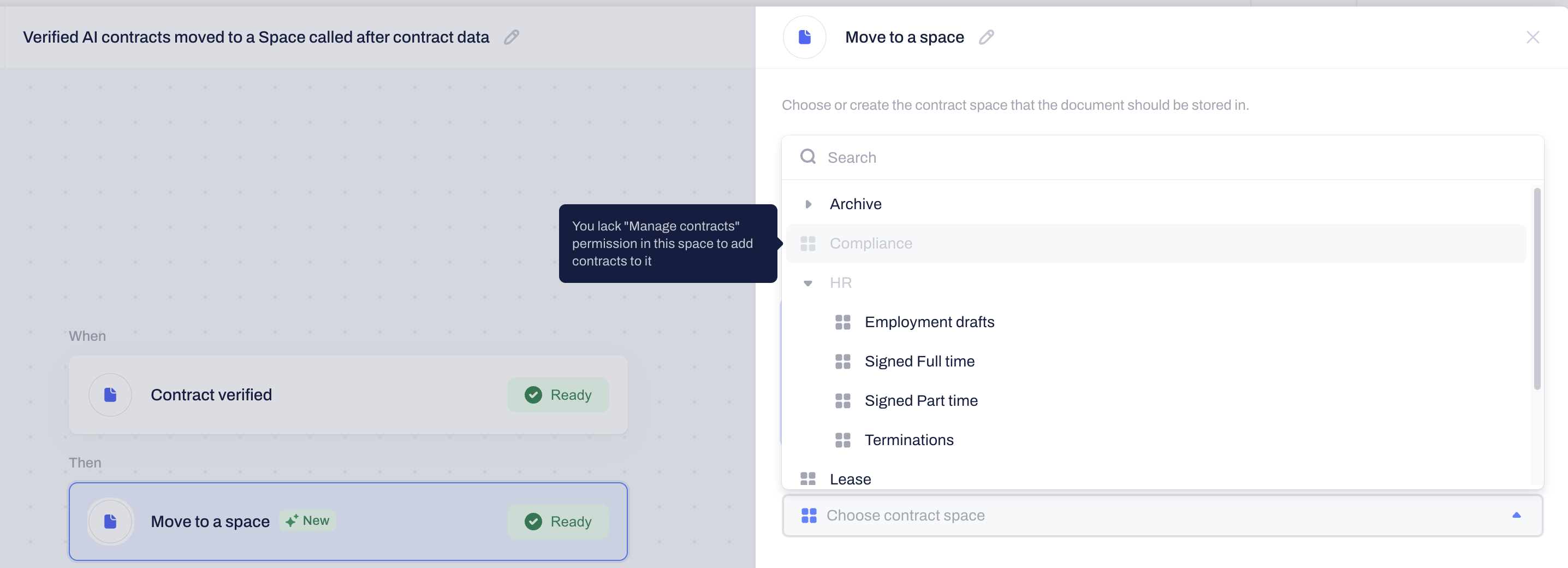
- Select an existing Space: Choose a specific shared Space from the dropdown list. All documents matching the trigger will move here.
Note: To select an existing Space in this step, you must have Manage space permissions enabled for that specific Space.
- Select an existing Space: Choose a specific shared Space from the dropdown list. All documents matching the trigger will move here.
Find or create dynamically: Select Use a variable to find or create a new contract space. This allows you to use contract data (for example: any data field, party, or signee name) to find an existing Space or automatically create a new one when the automation is executed:
Save and Publish: Click Save on the action configuration, then click Publish in the top right corner to activate the automated workflow.
Related Articles
Frequently asked questions:
- What permissions do I need to move documents to a Space automatically? To move a document to an existing space, you must have Manage contracts permissions for that specific space. If your automation dynamically creates a new space within an existing folder tree, you must have Manage space permissions in the parent space.
- Should I dynamically create new spaces for my automations? We recommend starting simple by moving contracts into a few high-level, manually created shared spaces. Creating too many dynamic Spaces automatically can quickly clutter your company's account.
Was this article helpful?
That’s Great!
Thank you for your feedback
Sorry! We couldn't be helpful
Thank you for your feedback
Feedback sent
We appreciate your effort and will try to fix the article