Company details and logo updates require specific permissions. To make these changes, you must have rights to “Manage company settings". Ensure you have this permission enabled before proceeding, or contact your Company administrator for help. Once enabled, follow these steps to update your company settings:
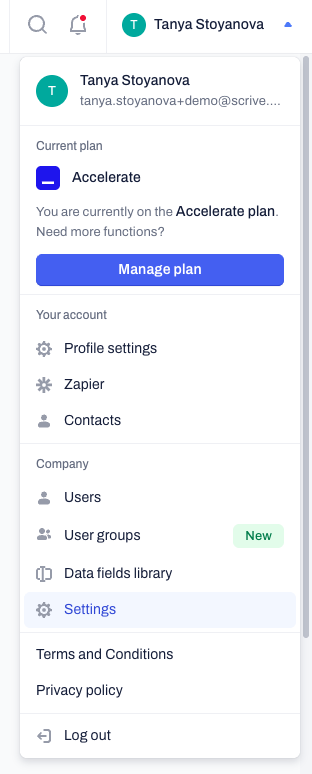
- Click on your profile icon in the top right corner and select Settings under the “Company” section from the menu.
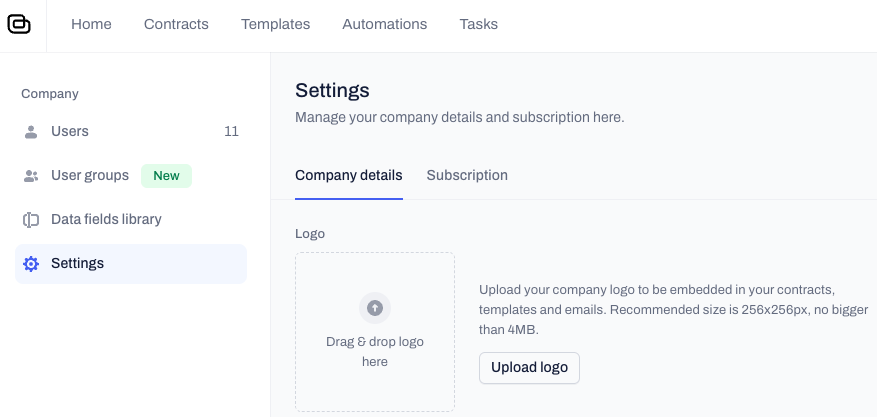
- Use the Company details tab.
- Upload your company logo. The uploaded file will automatically appear on all company contracts, templates, and emails generated when you send contracts or assign actions to recipients.
- Enter your organization’s name into the Company name field.
- Select your preferred date structure from the Company date format dropdown menu. This format becomes the default across all date-type data fields in your company's contracts, templates, and AI imports.
- Click the blue Save changes button to apply your updates.
Note:
Keep your uploaded company logo size recommended at 256x256px and no bigger than 4MB for the best visual display.
Related articles
- Manage company users and permissions
- View your company usage limits
- Manage your personal profile settings
Was this article helpful?
That’s Great!
Thank you for your feedback
Sorry! We couldn't be helpful
Thank you for your feedback
Feedback sent
We appreciate your effort and will try to fix the article