Reviewing your company subscription plan requires specific permissions. Ensure you have the “Manage subscription” permission enabled on your account before proceeding, or contact your Company administrator for help.
Once enabled, follow these steps to review your company's subscription plan:
Click on your profile icon in the top right corner and select Settings under the Company section from the menu.
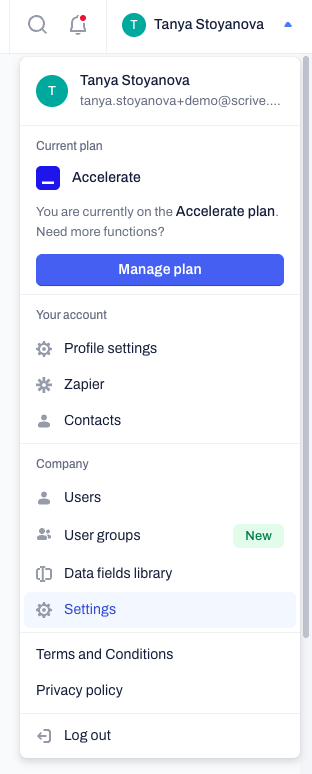
Navigate to the Subscription tab on the left-hand menu.
Here you will find your Subscription overview.
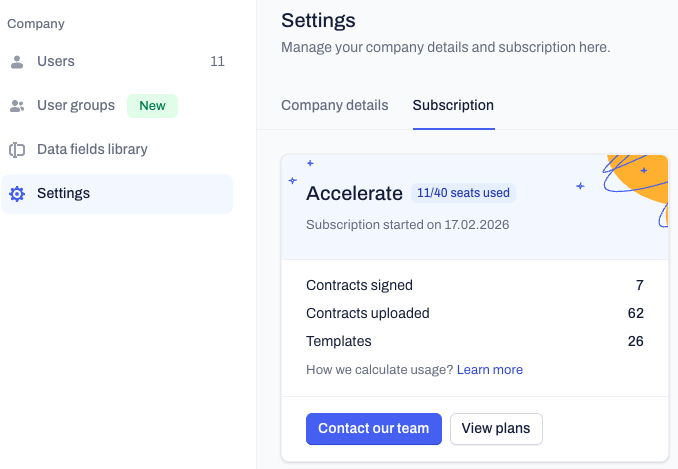
Understanding your metrics
Your total usage is calculated by aggregating the activity of all active users in your company account.
Seats used: This shows the number of active users in your Company account out of your total purchased seats (e.g., "10/40 seats used"). If you reach your limit and need to invite new users, you must contact your Customer Success Manager or Support team to request additional seats for your subscription.
Contracts signed: We count any document fully signed using Contractbook signature methods by an active company user. This limit only resets to the base limit of your plan, if you have signed ex 500 contracts that is not automatically incl. in the new renewal.
Contracts uploaded: We track all PDFs your company users upload (via AI import, standard upload, or automations) over the lifetime of your account. This limit does not reset at renewal, but you can always contact your dedicated Customer Success Manager to gain more storage.
Templates: We track the total number of templates your company users create or upload. This is also a lifetime count that only decreases when you delete a template.
Note:
Contracts created using the "Sign a PDF" option count within your yearly Contracts signed limit, rather than your lifetime uploaded contracts limit.
Frequently asked questions
Why can't I see the Subscription tab or usage counts?
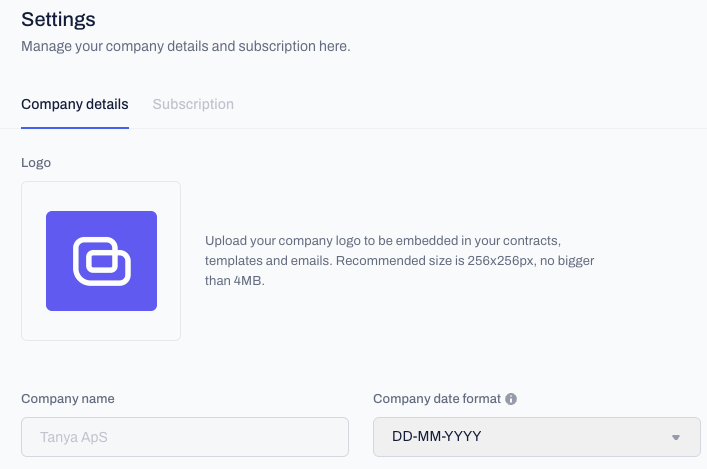
If you are wondering why the Subscription tab is missing, it is because you do not have the required permissions enabled on your account. Users without the Manage subscription permission will only see the Company details tab when accessing Company settings.
To gain access to the Subscription tab, you must contact your Company administrator and ask them to enable the Manage subscription permission for your account.

Related articles
Manage company users and permissions
Manage your company profile and logo
Access levels and user groups
Was this article helpful?
That’s Great!
Thank you for your feedback
Sorry! We couldn't be helpful
Thank you for your feedback
Feedback sent
We appreciate your effort and will try to fix the article