Organize users into groups
Managing user access at scale through User groups requires specific permissions. To create or edit groups and manage their permissions, you must have the right to “Manage user groups". Ensure you have this permission enabled before proceeding, or contact your Company administrator for help.
Once enabled, follow these steps to organize your Company users into groups:
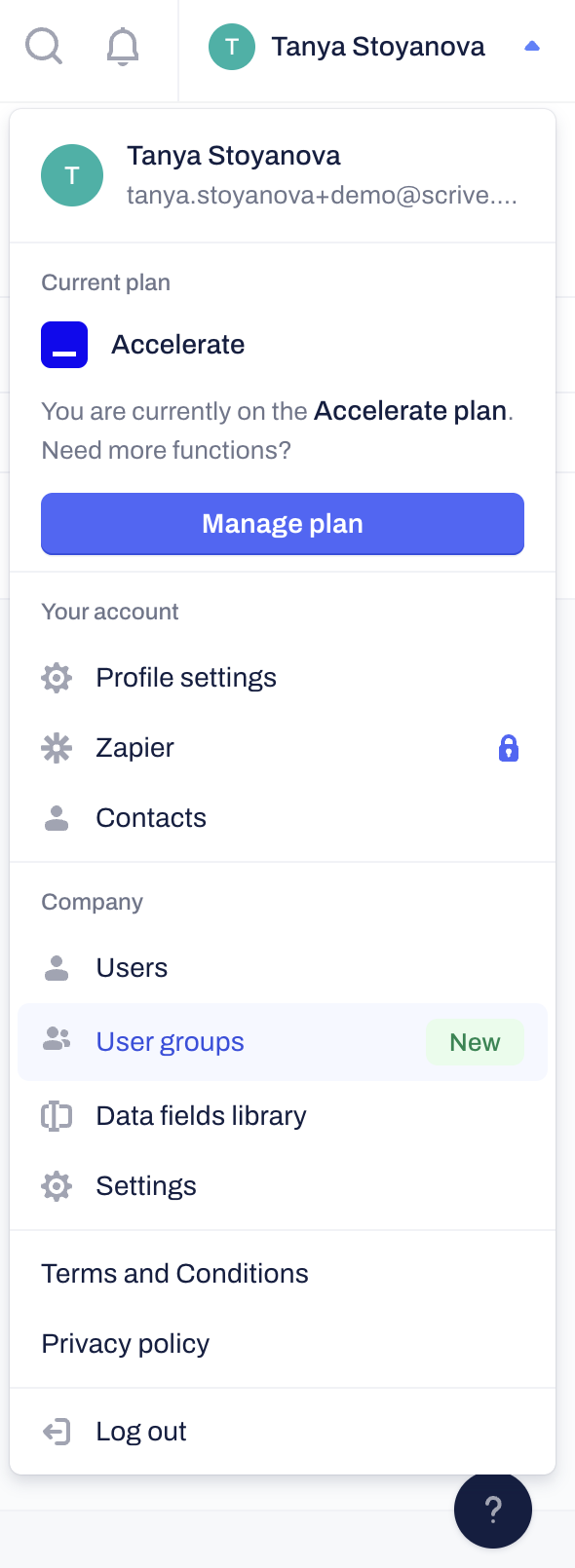
Click on your profile icon in the top right corner and select User groups from the menu.
Click on the Create group blue button in the right-hand corner

Assign a name to the new group (e.g., "HR Department").
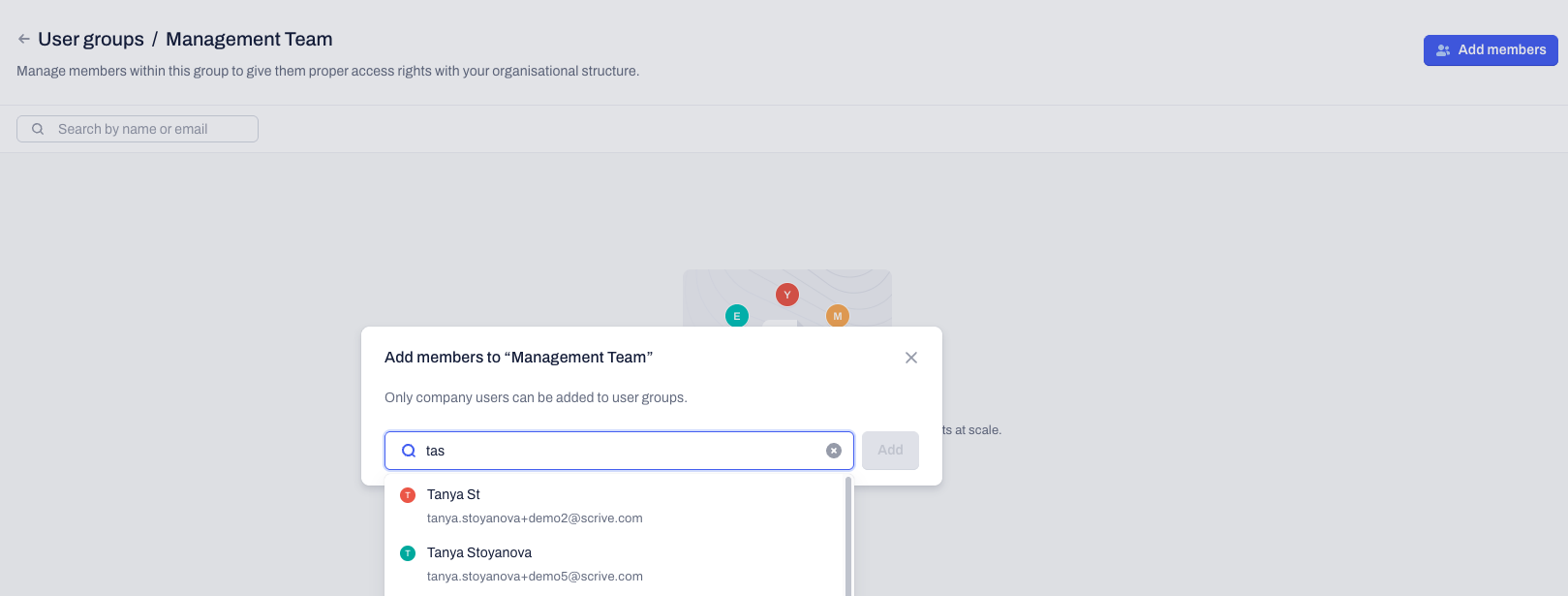
Add users to this group by clicking on the Add members blue button in the right-hand corner.
Pro-tips:
User groups is a premium feature that is not included in all plans. If you do not see the option to manage user groups in your account, please reach out to your Customer Success Manager for more information on how to get this feature.
You can assign distinct colors to specific User groups. This allows for quick visual identification when reviewing Space access lists and managing company-wide permissions.
Configure permissions for groups
Permissions can be assigned to an entire group at once. Every new user added to the group automatically inherits the group's permissions. Removed from the group users lose their group-level permissions instantly.
Click on your profile icon in the top right corner and select User groups from the menu.
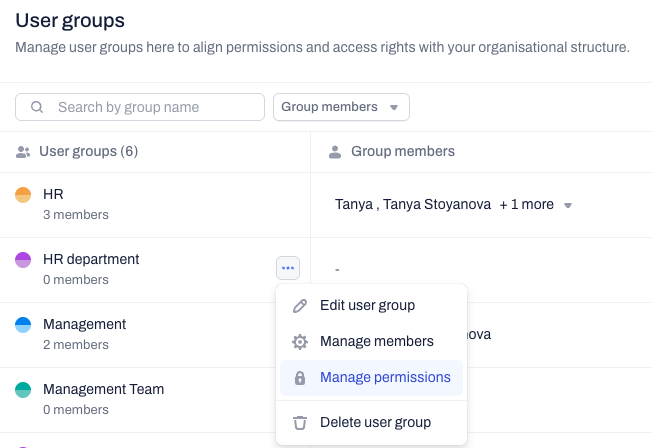
Locate the desired user group from the overview.
Click on Manage permissions from the three dots contextual menu.
Enable or disable the specific type of permission.
Click on the Save changes blue button to apply any updates.
Pro-tip:
You can still grant permissions to individual company users if they require additional access rights than their assigned user group(s) have.
Frequently asked questions
How do I give a user group access to specific contracts or templates?
You can manage contracts and templates access when sharing Spaces. Select the user group from the list and grant all users from that group specific type of access to work with contracts and templates within the shared space.
Related articles
Understand and manage user permissions
Manage pending invitations
Organizing your archive with shared spaces
Was this article helpful?
That’s Great!
Thank you for your feedback
Sorry! We couldn't be helpful
Thank you for your feedback
Feedback sent
We appreciate your effort and will try to fix the article