Searching and filtering company documents requires specific permissions. To search across all company contracts, you must have user permissions to “Manage all contracts” enabled on your account. Ensure you have this permission enabled before proceeding, or contact your company administrator for help.
Once enabled, follow these steps to search, filter, and save your search queries:
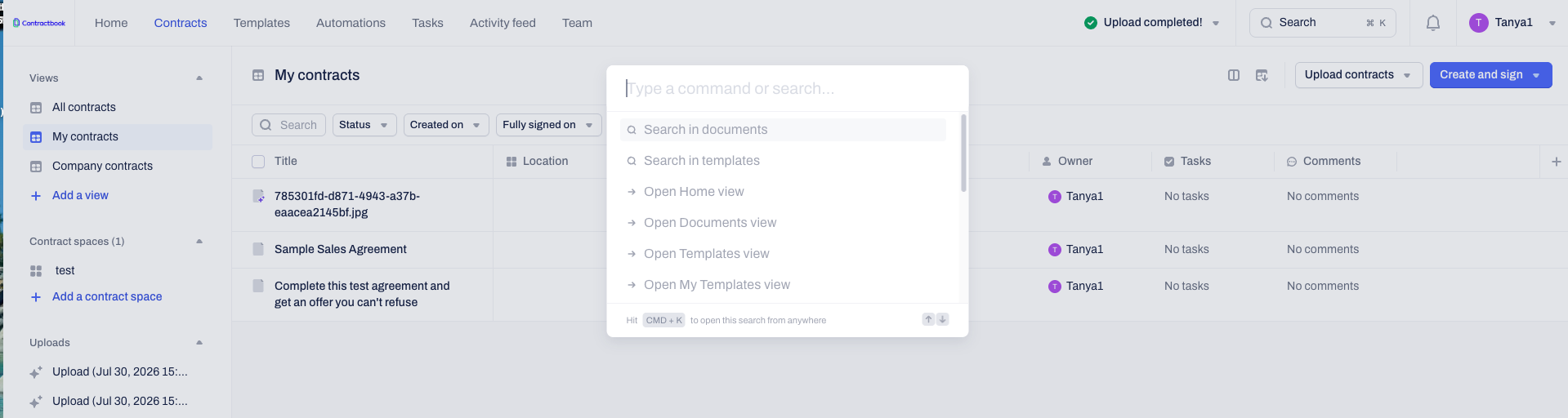
Access the global search
The search functionality is located in the main navigation bar, allowing you to initiate a search from anywhere in the platform without needing to navigate to the specific menu first.
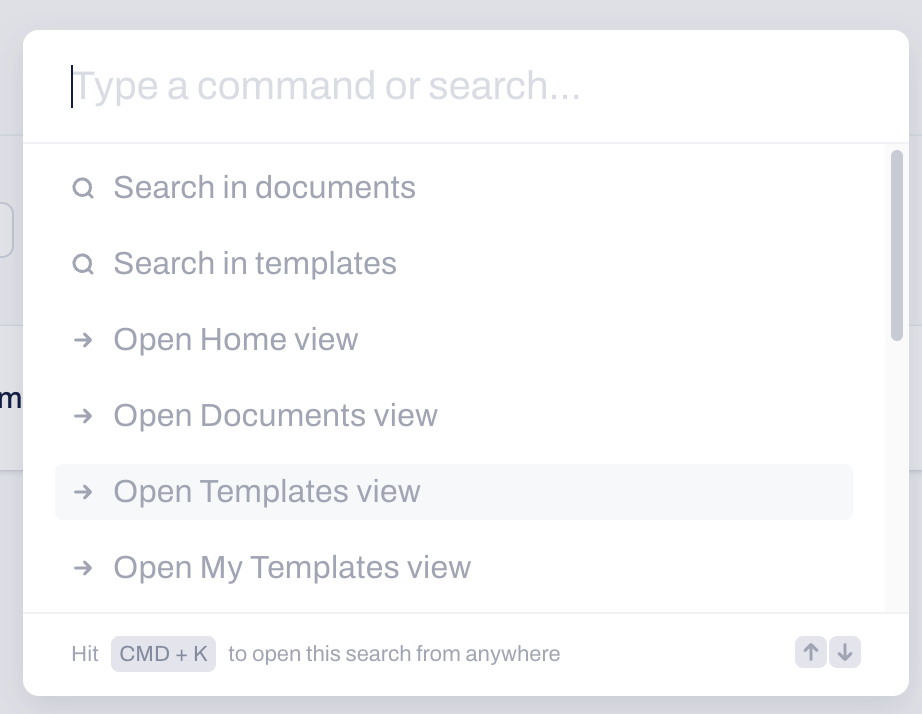
Click the Search input field located in the top navigation bar, right next to your notification bell.
Alternatively, press Cmd + K (Mac) or Ctrl + K (Windows) on your keyboard to open the search module.
Apply filters to your search results
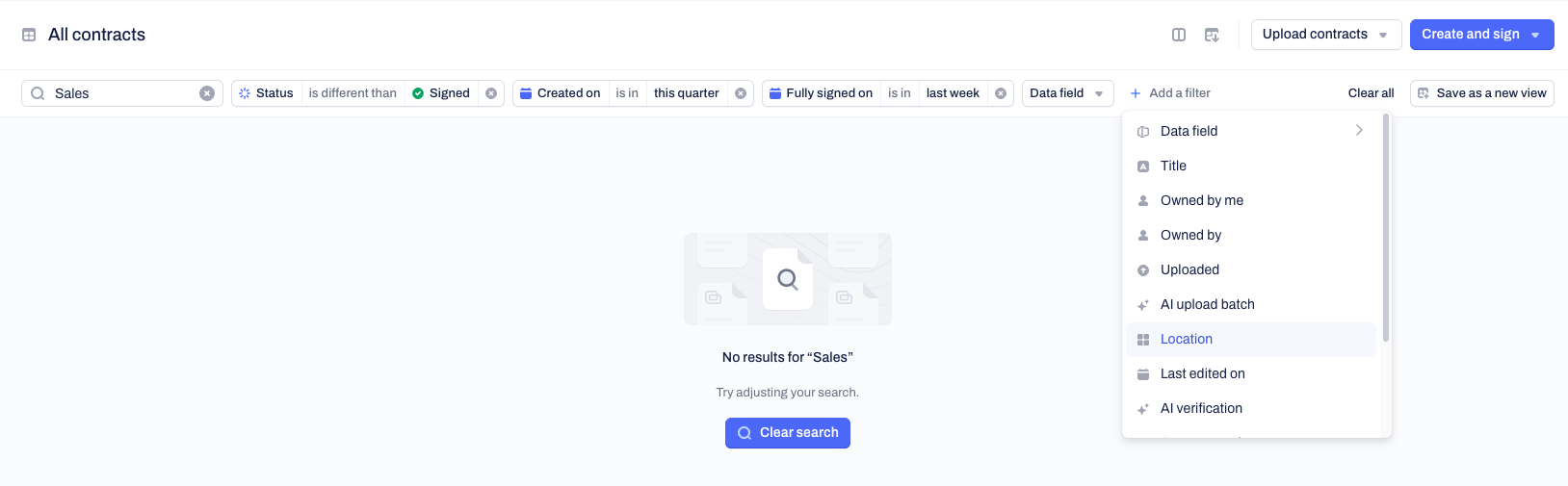
The rebuilt search results page uses the same table grid as your standard contract list. This allows you to combine keyword searches with granular filters.
Review the search results displayed in the table grid.
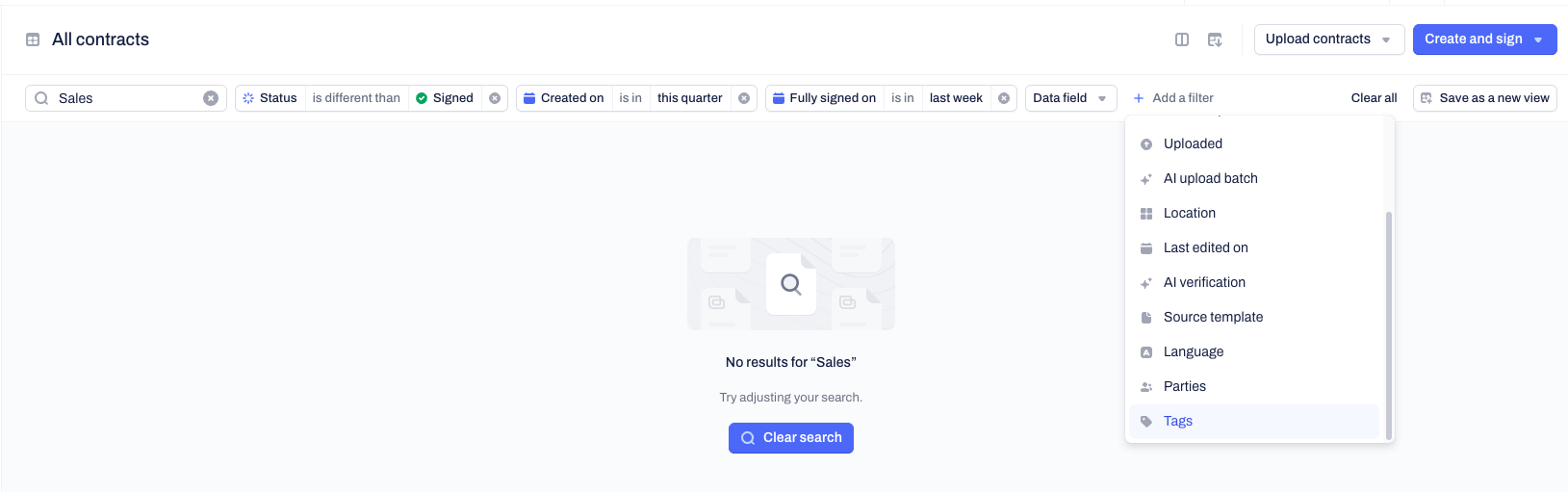
Click the + Add a filter button located in the action bar above the table to narrow down your search results.
Save your search as a new view
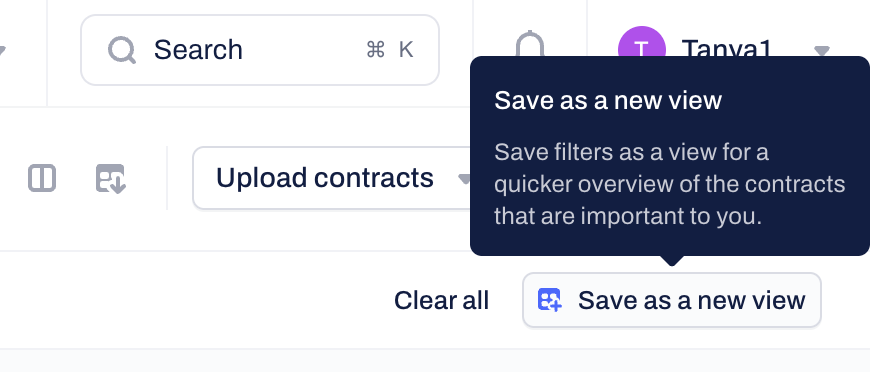
Instead of rebuilding the same complex query multiple times, you can save your specific search parameters and applied filters as a dedicated view in your sidebar.
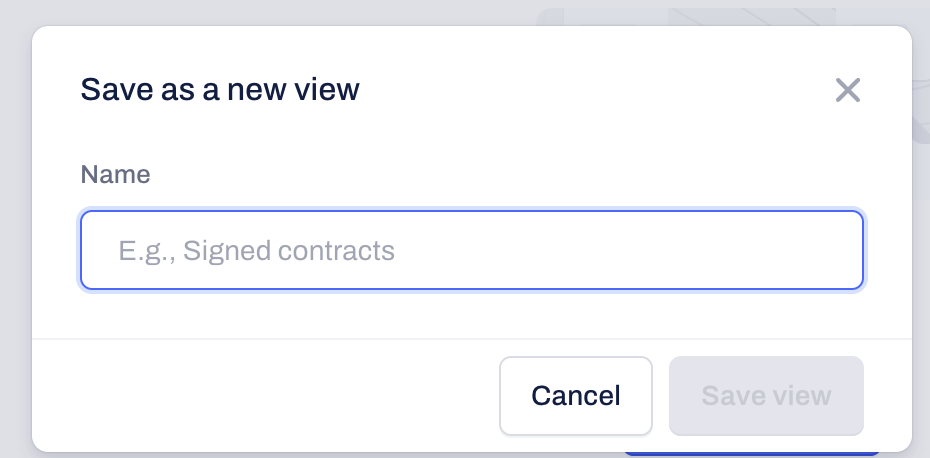
Click the Save as a new view button located on the far right side of the action bar once you have applied all your desired filters.
Type in a name for the new view and click on the blue Save button to complete the action.
Frequently asked questions
How do I search for templates instead of contracts?
When you click on the Search box or use the keyboard shortcut, select the Search in templates option from the dropdown menu before typing your query. This will apply the search results and filtering capabilities specifically to your template library.
Can I edit my saved search view later?
Yes. Since your saved searches function exactly like standard contract views, you can manage them at any time. You can click on the view from your sidebar, add or remove filters, and save the updated layout.
What if I cannot find a document I know exists?
If a search returns no results, ensure you have the correct permissions to view the document. If it is located in a restricted shared space, you must ask the space creator to grant you access. If you suspect a platform error, please contact our Support team for assistance.
Note: By saving your most frequently used search queries with applied data field filters as new views, you create a powerful dynamic reporting dashboard right in your main navigation. This helps you monitor specific contract lifecycles without running the same search daily.
Was this article helpful?
That’s Great!
Thank you for your feedback
Sorry! We couldn't be helpful
Thank you for your feedback
Feedback sent
We appreciate your effort and will try to fix the article