How to generate API keys on Contractbook
Learn how to create, manage, and revoke API keys to connect Contractbook with your favorite tools and establish secure SCIM integrations.
Steps to generate your API key
Follow these steps to generate a new API key for your personal account or company-wide integrations:
Click on your profile icon in the top right corner of the platform.
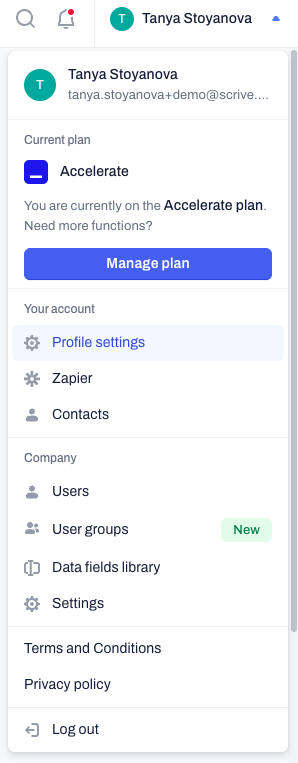
Click on Profile settings from the drop-down menu.
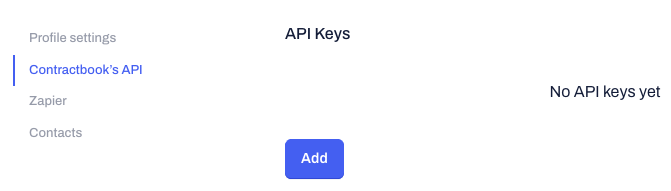
In the left-hand sidebar, click on Contractbook’s API.
Click the blue Add button to create a new key.
Enter a descriptive Title for your key (for example: Salesforce CRM Integration).
If required for your integration, enter the Callback URL.
Click Add to generate a new key:
API Access Key Security
For maximum security, we recommend storing your API key in a dedicated password manager immediately after generation. While your keys remain visible within your Contractbook account, following strict credential management protocols prevents unauthorized access and ensures your integrations remain secure.
Generating SCIM API keys
You can automate user provisioning and deprovisioning by connecting Contractbook with Identity Providers like Okta or Microsoft Entra ID.
To ensure security and proper configuration, Company SCIM API keys are generated by the Contractbook Support team. Follow these steps to initiate the setup:
Verify Permissions: Confirm you are logged into a Contractbook account with all company permissions enabled.
Contact Support: Request from our Contractbook Support Team to generate your SCIM token.
Provide Details: Include the following information in your request:
The email address associated with the Contractbook account managing the integration.
The Integration Type you are setting up (Okta or Microsoft Entra ID).
Configure Identity Provider: Once you receive the generated token from our team, enter it into your Identity Provider’s configuration settings to bridge the connection.
Security Note: Treat your SCIM API key like a password. Do not share it in public channels, and ensure it is only accessible to your IT or System Administrators.
Managing and Revoking API Keys
If a tool is no longer in use or a key has been compromised, you should revoke access immediately to protect your company's data.
Navigate to the Contractbook’s API section under Profile settings.
Locate the key you wish to remove from the list.
Click the Remove button next to the specific key:
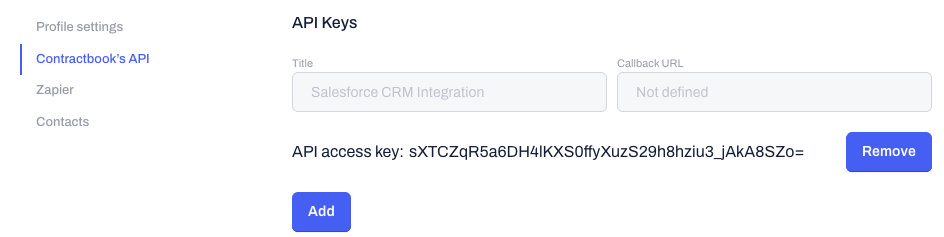
Warning: Revoking an API key is permanent. Any active integrations using that specific key will stop working immediately.
Related Articles
Was this article helpful?
That’s Great!
Thank you for your feedback
Sorry! We couldn't be helpful
Thank you for your feedback
Feedback sent
We appreciate your effort and will try to fix the article