Setting up calculations in forms requires specific permissions. To set up forms’ calculations in any of your company templates, you must have user permissions to “Manage templates” and access to log in to Contractbook forms. Ensure you have this permission enabled before proceeding, or contact your company administrator for help.
Note: Forms is a premium feature that is not included in all plans. If you do not have access to forms through the login page or do not see the Form tab of the Data fields sidebar section within templates, please reach out to your Customer Success Manager for more information on how to get this feature.
Once enabled, follow these steps to set up calculations in forms:
Create a calculation formula
If you need to know how to compute a numeric result automatically without manual math, you can use the calculation question type in forms. A calculation is a special question type in your forms that automatically computes a numeric result based on specific form answers, such as multiplying a monthly rent by 12.
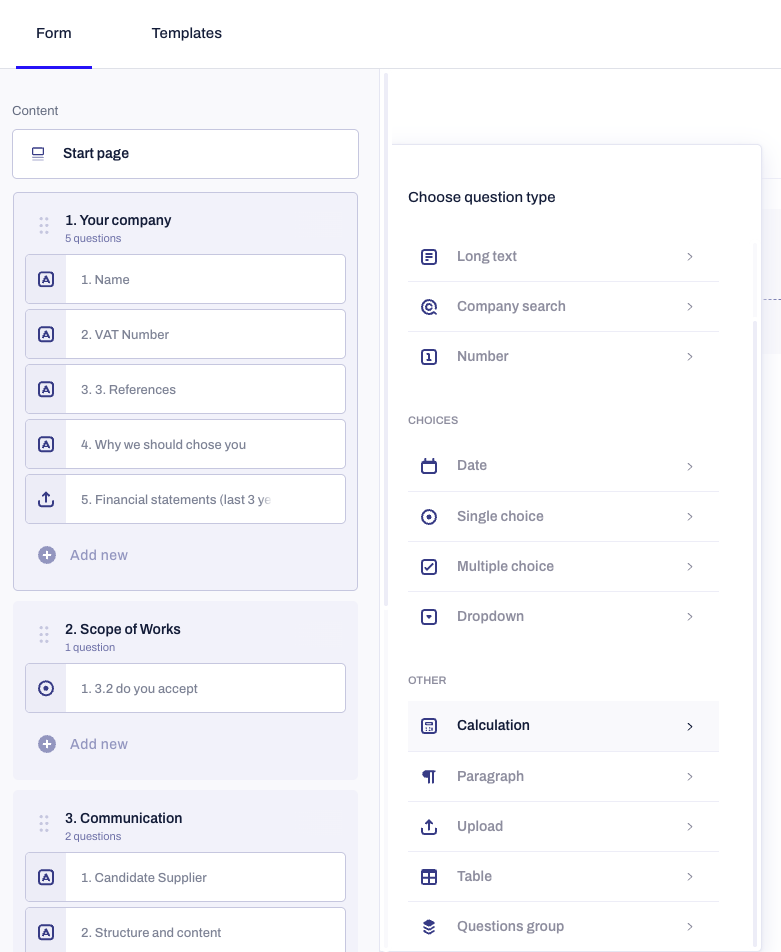
Open your form editor and click on + Add question under the Form tab to add a new question to the content.
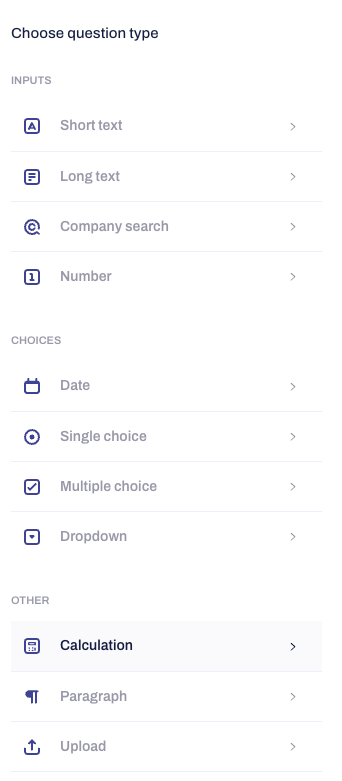
Select the Calculation question type from the options, located under the Other category with a little calculator icon.
Add a question title for the calculation formula.
Click the Operand dropdown in the first row to pick a previously added Number field.
Select a value from the dropdown list of options.
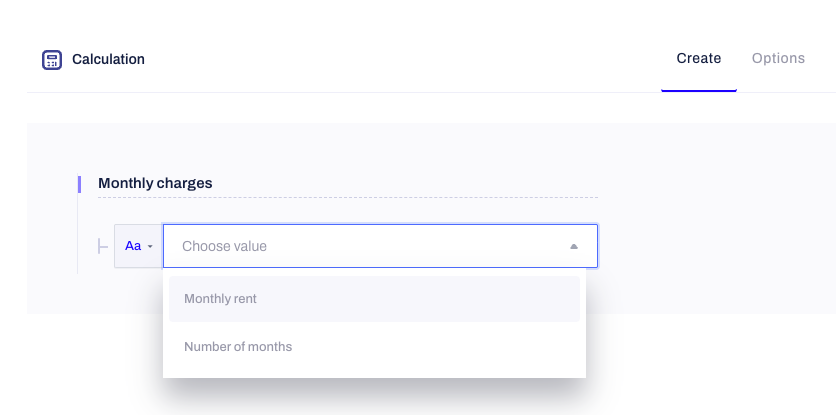
Note: Only number question types positioned before the calculation question in the form can be selected. If there are no available number questions, you will not be able to complete the calculation question.
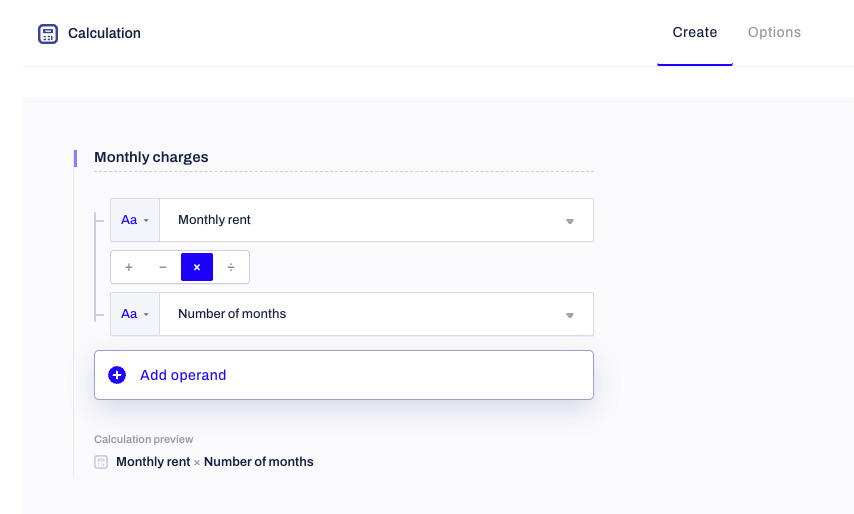
Click one of the Operator pill buttons (+, −, ×, ÷) to define the math rule between the selected number question types.
Click Add operand to add more rows to your formula. You can add up to 20 operands.
Review the Calculation preview below the builder to see the whole formula displayed in one line.
Insert the form’s calculation output into your templates
Once the form’s recipient completes the form, which includes a calculation-type question, the calculated result can be inserted directly into the generated contracts just like any other standard form’s answer.
Click on the Templates tab from the main navigation menu under your Contractbook account.
Click on the template you want to use for the contract creation.
Click on the Data fields sidebar tab option on the right-hand side of the template body.
Click on the Form tab of the sidebar panel.
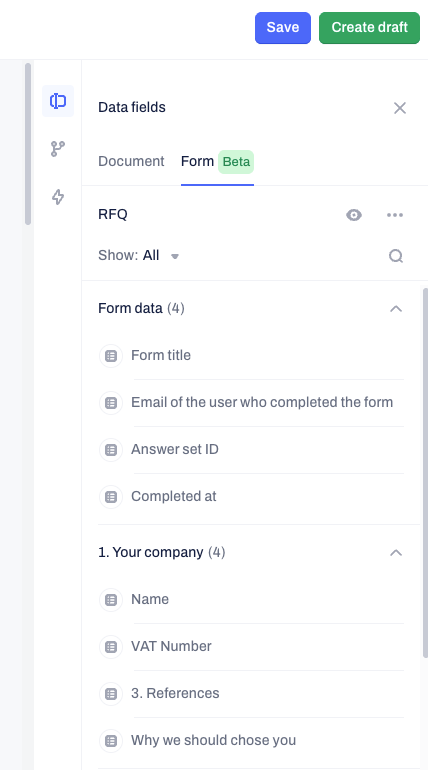
Select the specific form from your company list to connect it with your template.
Drag and drop the calculation field in the template body. This is where the final result of the calculation formula will appear within contracts created from the template, upon the form’s completion.
Apply your preferred number formatting options, such as thousands separators or decimal toggles.
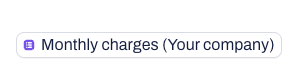
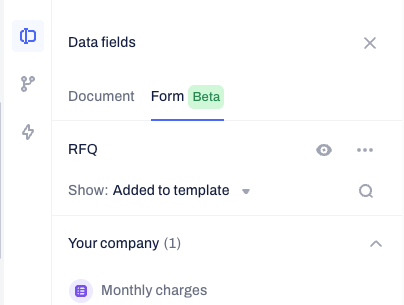
Use the filter for the connected form to show all questions that have been added to the template body.
Understand computation rules in your form’s calculation questions
Order of operations: The system follows standard PEMDAS math rules, meaning multiplication and division are applied before addition and subtraction.
Live updates: For the recipient filling out the form, the calculation appears as a read-only, greyed-out field that updates live as they type in their answers to the previous number question types. It is never marked as "required" and will not block the form from submission.
Error handling: If a referenced answer is missing, non-numeric, or involves division by zero, the calculated field will result in a blank in the finally generated contract to ensure your contract generation does not break.
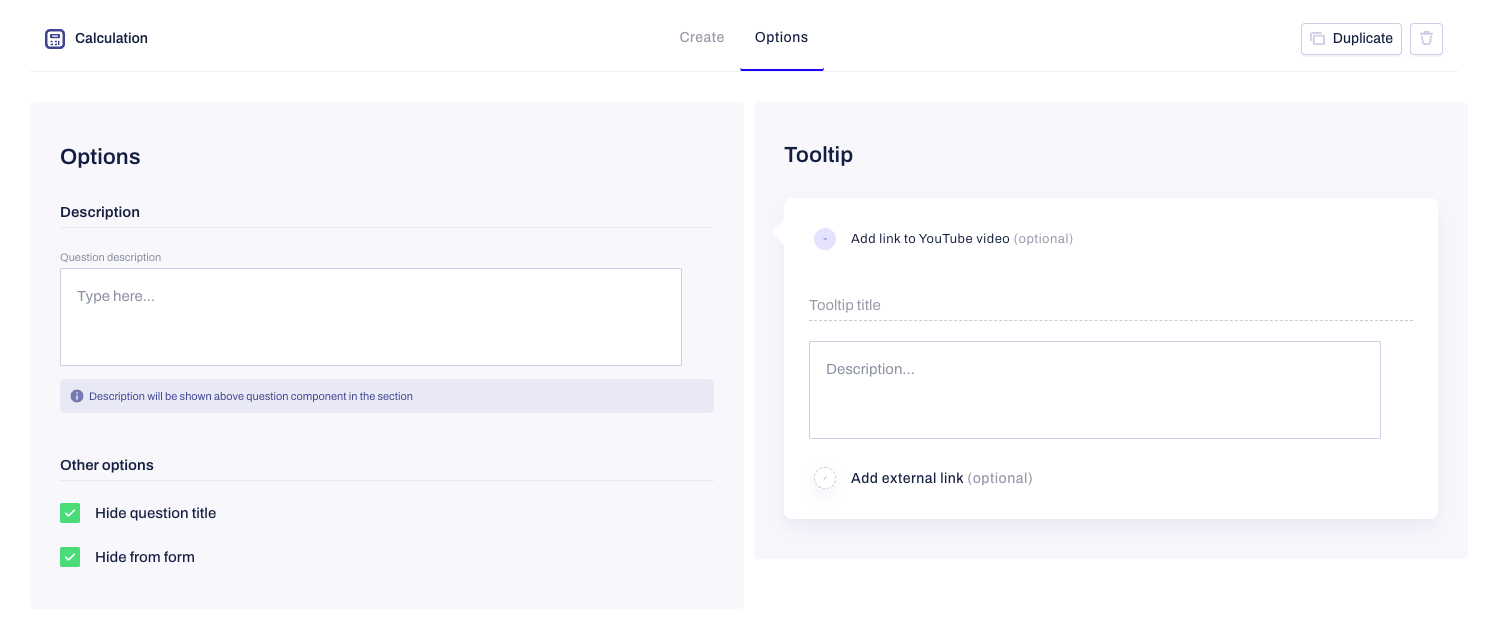
Note: You can choose to hide a calculation question from the recipient filling out the form. This allows the math to be computed silently in the background and only displayed in the final generated contract body based on the template setup.
Was this article helpful?
That’s Great!
Thank you for your feedback
Sorry! We couldn't be helpful
Thank you for your feedback
Feedback sent
We appreciate your effort and will try to fix the article