Note: Managing the AI upload contract types is a premium feature that is not included in all plans. If you do not have access to the AI detection contract types page, please reach out to your Customer Success Manager for more information on how to get this feature.
Managing AI detection contract types requires specific permissions. To manage AI detection contract types, you must have user permissions to “Manage AI upload contract types” enabled on your account.

Ensure you have this permission enabled before proceeding, or contact your company administrator for help. Once enabled, follow these steps to manage AI detection contract types:
Access the AI detection contract types
Contract types act as a blueprint, instructing the AI exactly which data fields (like "Start date" or "Annual value") to detect when you upload a specific type of signed contracts into Contractbook.
Click on the Contracts tab from the main navigation menu.
Click the Upload contracts dropdown menu.
Select the Upload contracts with AI option.
Review the Default contract types list to see which of your company's contract types are currently marked as default on the AI detection contract types page.
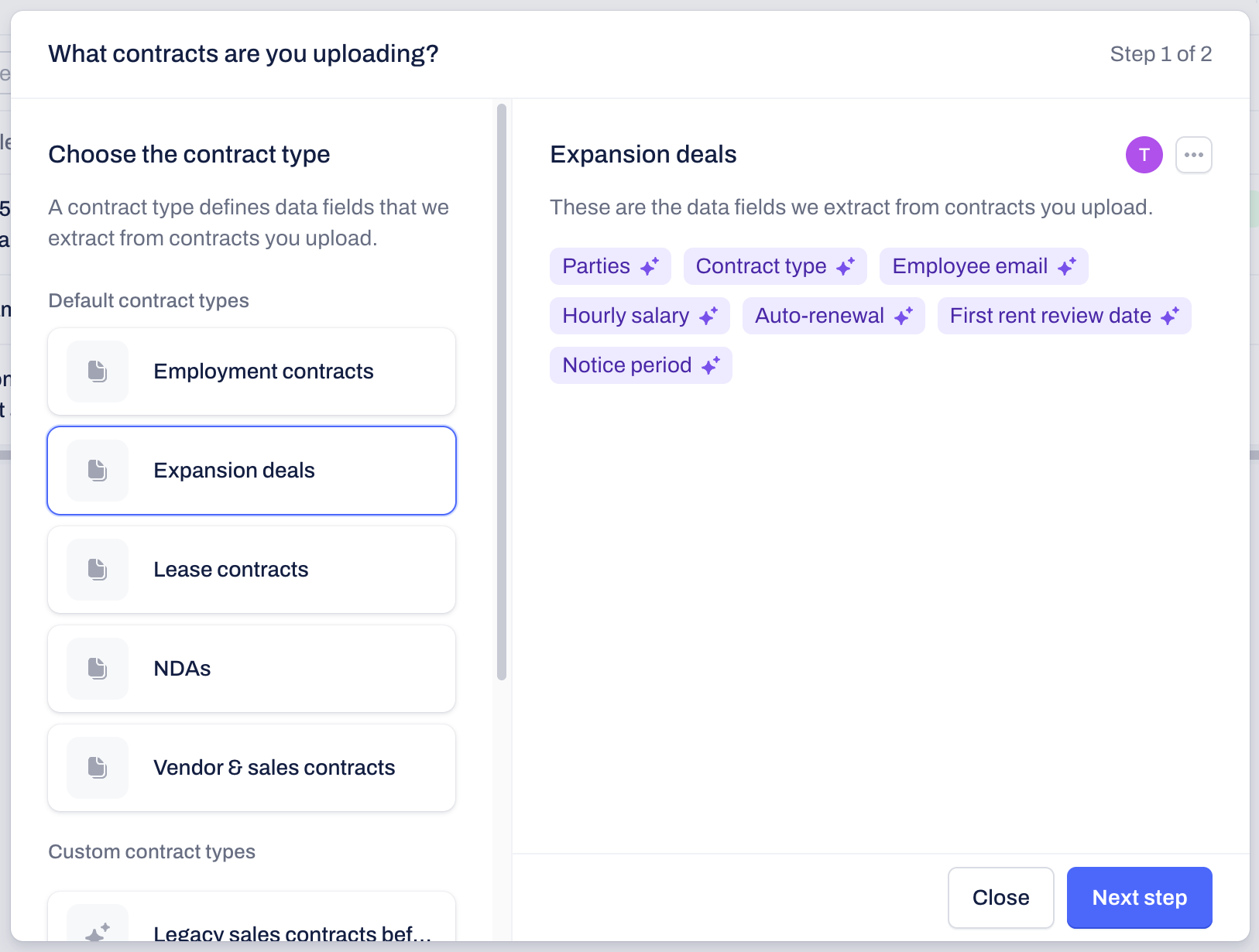
Use the Custom contract types section of the left-hand options to view all already created contract types.
Click on a specific contract type from the list to see its name, description, default status, and selected for extraction list of data fields.
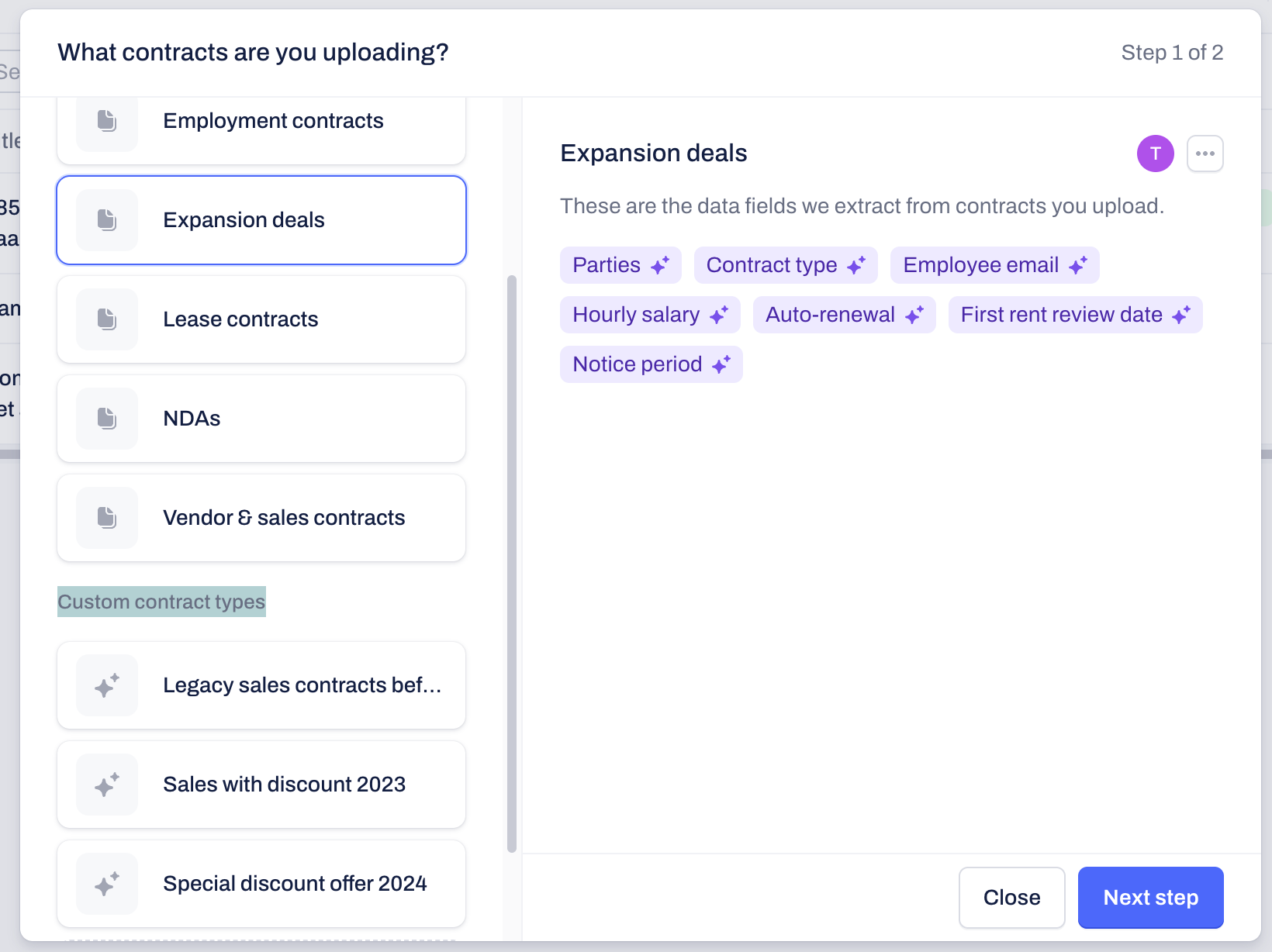
Create custom contract types for AI uploads
To create a new custom contract type, you must have user permissions to “Manage AI upload contract types”.
Start a new contract type
Depending on your workflow, you can initiate the creation of a new custom contract type using two different paths. How you begin determines whether you must build the framework from scratch or if you can use an existing contract type as a base.
Option 1: Start from company settings
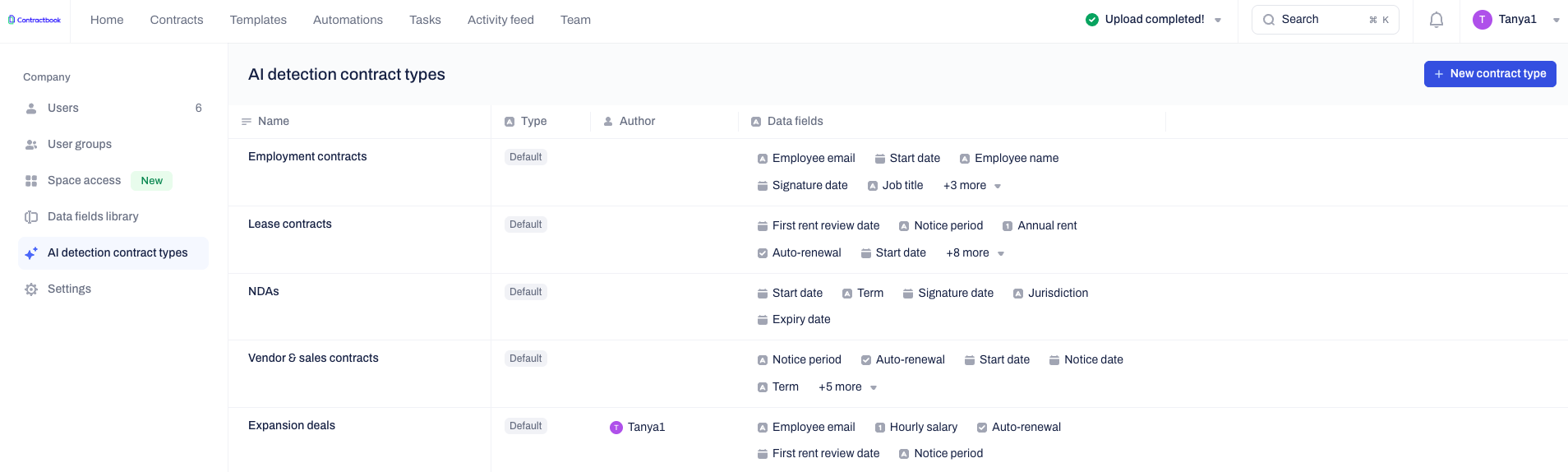
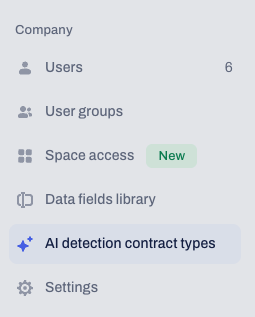
Click on your profile icon in the top right corner and select AI detection contract types under the "Company" section from the menu.
Click the blue + New contract type button located in the top right corner of the page.
Option 2: Start from the AI upload module
Click on the Contracts tab from the main navigation menu.
Click the Upload contracts dropdown menu and select Upload contracts with AI.
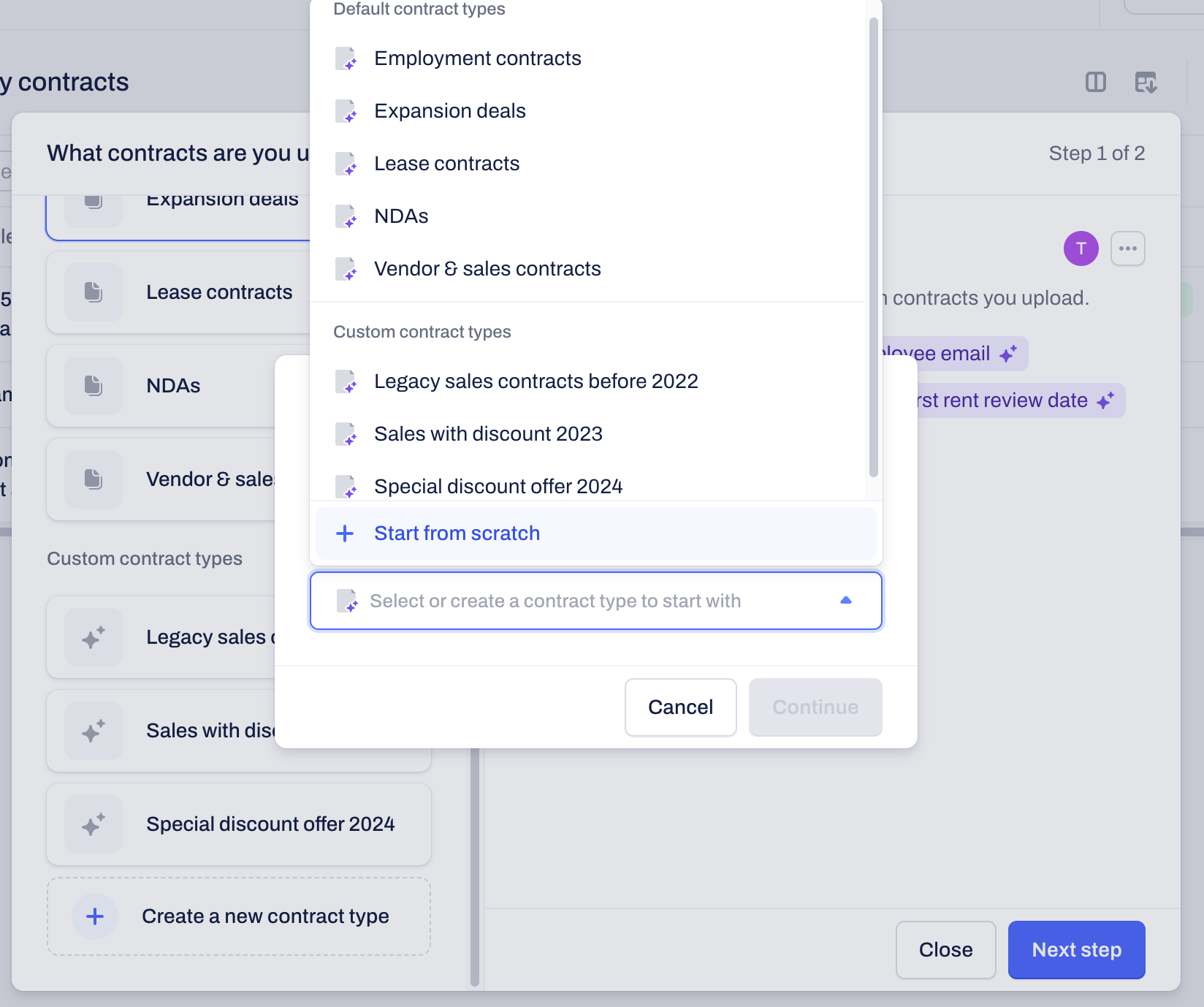
Click on Create a new contract type from the left-hand side of the module.
Click the dropdown menu to select a base. You can base your new contract type on an existing custom type, pick a default contract type from the library, or select + Start from scratch to build an entirely new framework.
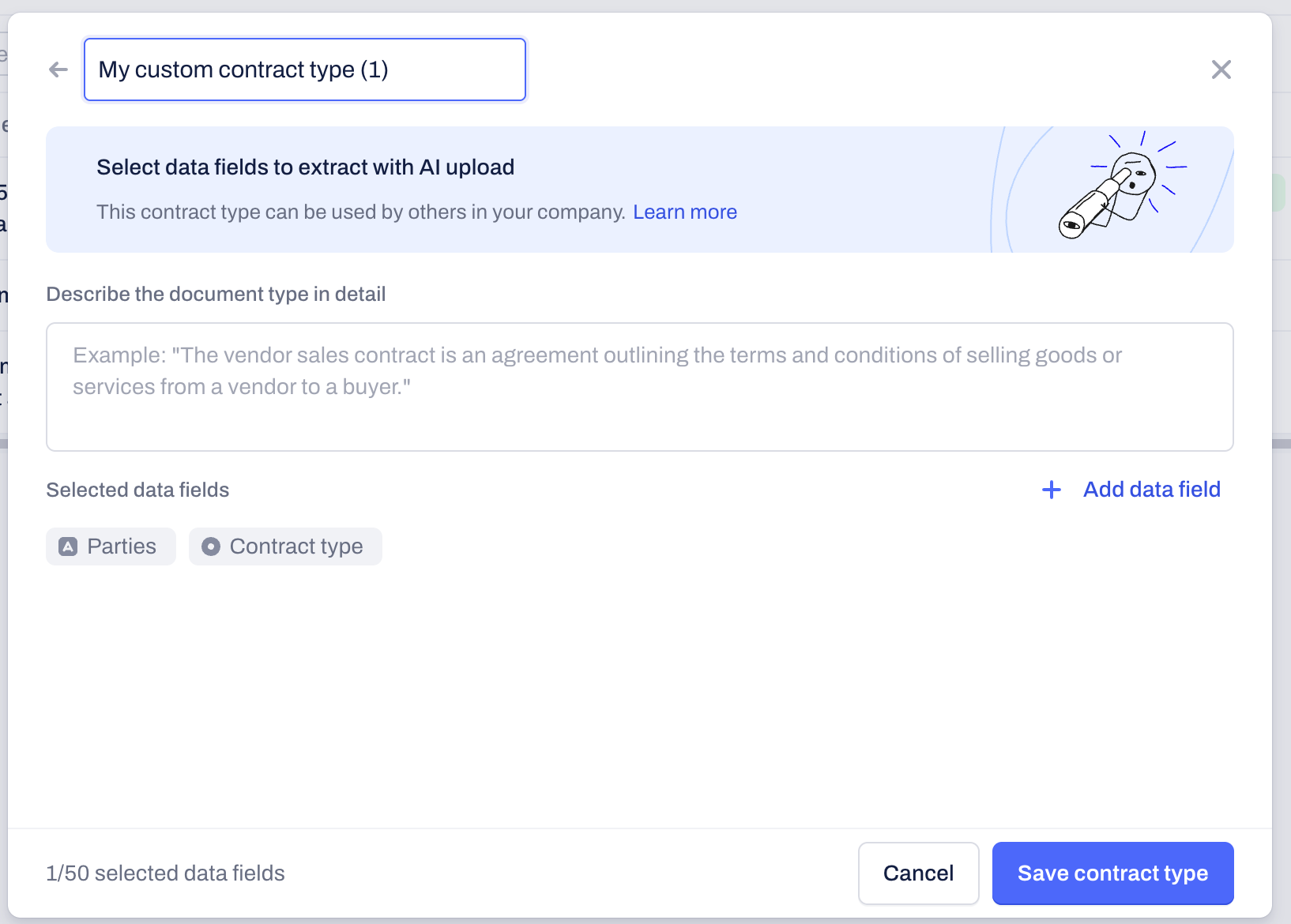
Edit the default contract type name ("My custom contract type") at the top of the module to give it a unique title.
Configure the contract type details
Regardless of which path you chose to start the creation process, the final steps involve defining the properties of your new AI upload contract type.
Click the pencil icon next to the default name at the top of the module to give the contract type a unique title.
Type a detailed explanation in the Describe the document type in detail text box to clarify the types of contracts you will upload with this format.
Click the + Add data field button to select the specific data fields the AI must extract from these uploaded contracts.
You can select all types of data fields for this section. This includes Select type of data fields.
Enable the Show as a default contract type option if you want to make this contract type a standard base, which will appear at the top of the list with AI upload contract types for your company users.
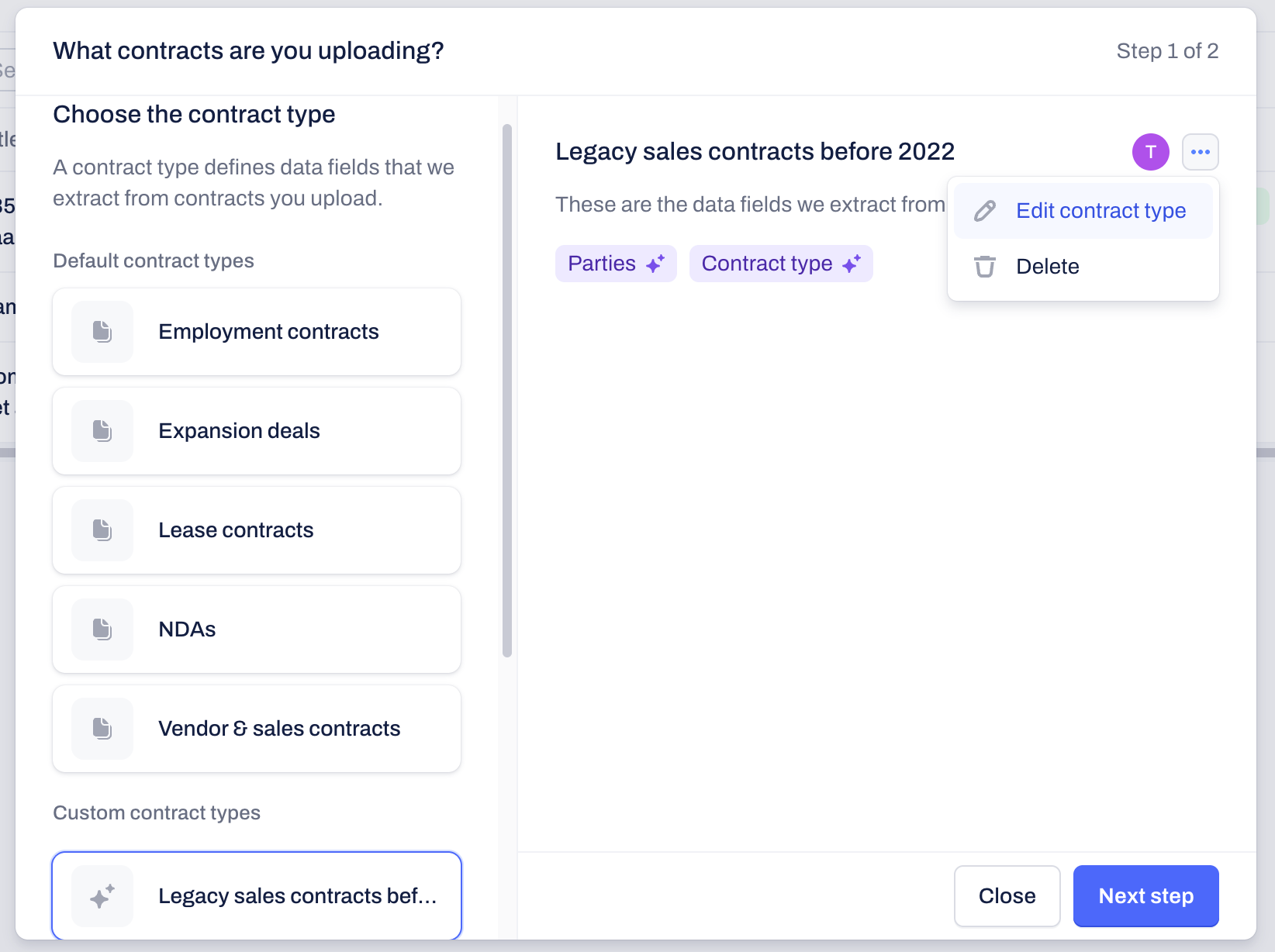
Note: You can only enable this option if you started the creation process directly from the company settings. If you used the AI upload module, you must complete the creation first, click the three-dot menu next to the new type, select Edit contract type, and enable the default option from the AI detection contract types page.
Click the blue Save contract type button to complete the creation process.
Pro-tip: When adding the description for your custom contract type, be as specific as possible. The AI uses this context to accurately identify and extract the correct data fields from your uploaded contracts, saving you time during the verification process.
Edit existing custom contract types
You can edit the built-in default contract types (such as Vendor & Sales, NDA, or Lease) to fit your company's specific needs, or flag your most used custom contract types as defaults so they are automatically sorted at the top of the list in the AI upload module. All of these configurations are managed from the dedicated AI detection contract types page.
Click on your profile icon in the top right corner and select AI detection contract types under the "Company" section from the menu.
Alternatively, access this page by clicking the three small dots next to a contract type title from the AI upload module and selecting Edit contract type.
Review the main table to see all available contract types. Standard contract types from the library are labeled as Default under the Type column.
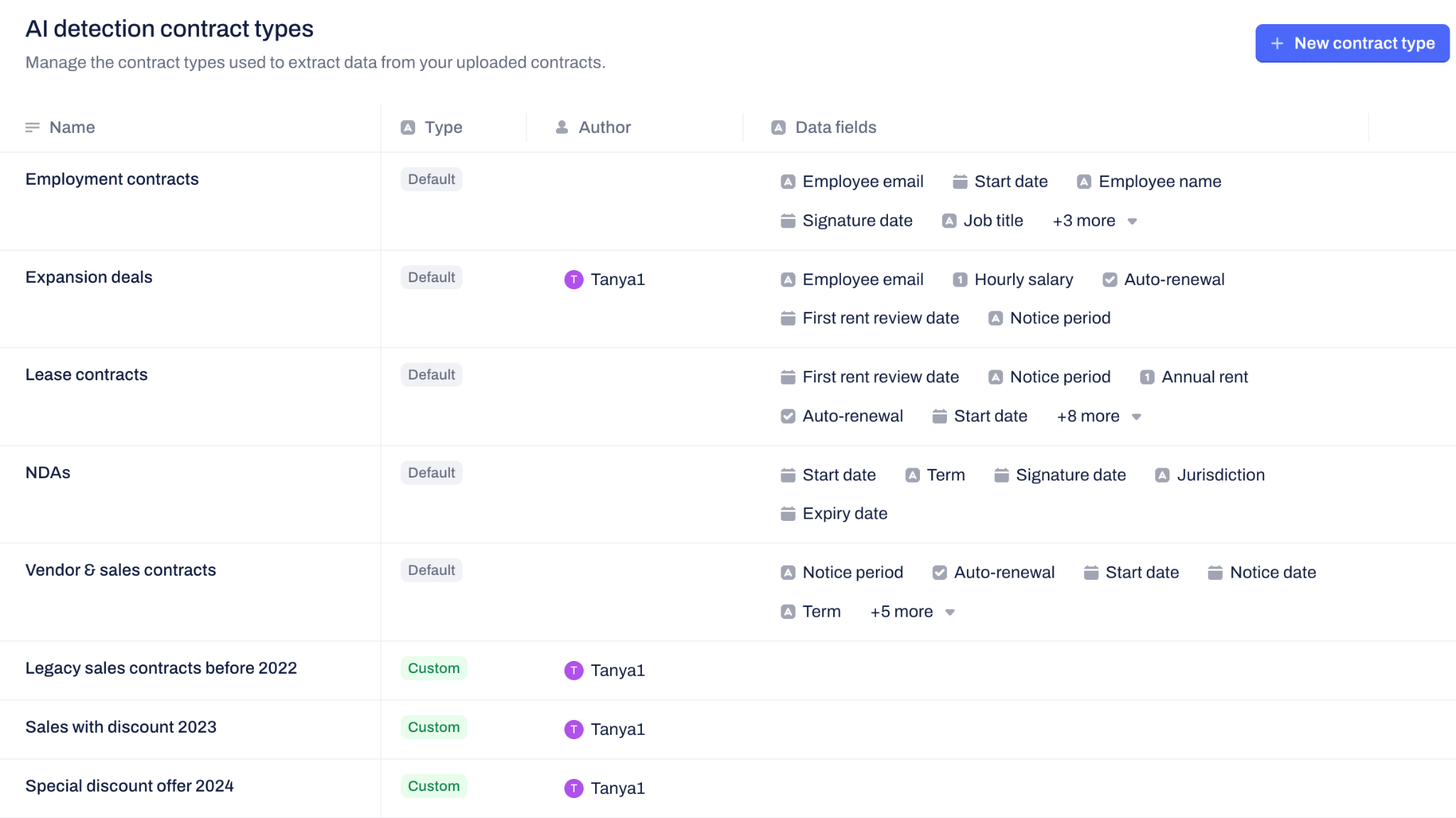
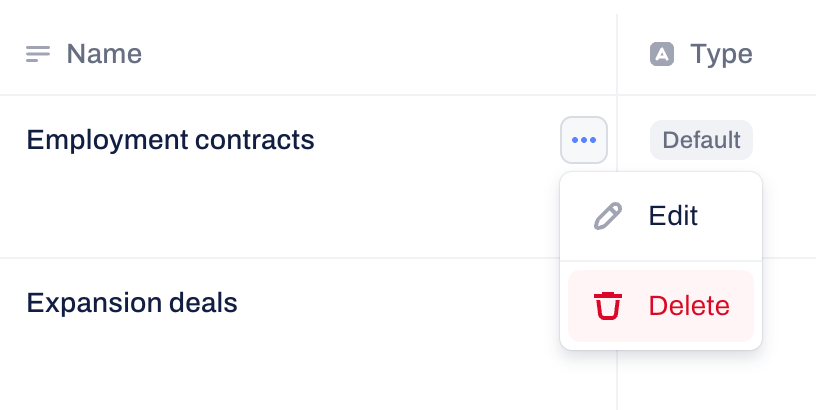
Click on the three dots menu next to the name of the specific contract type you want to modify and select Edit to expand its properties panel on the right side of the screen.
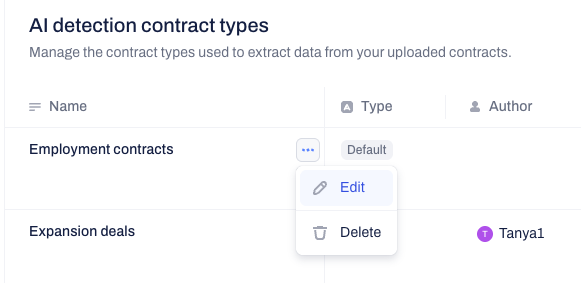
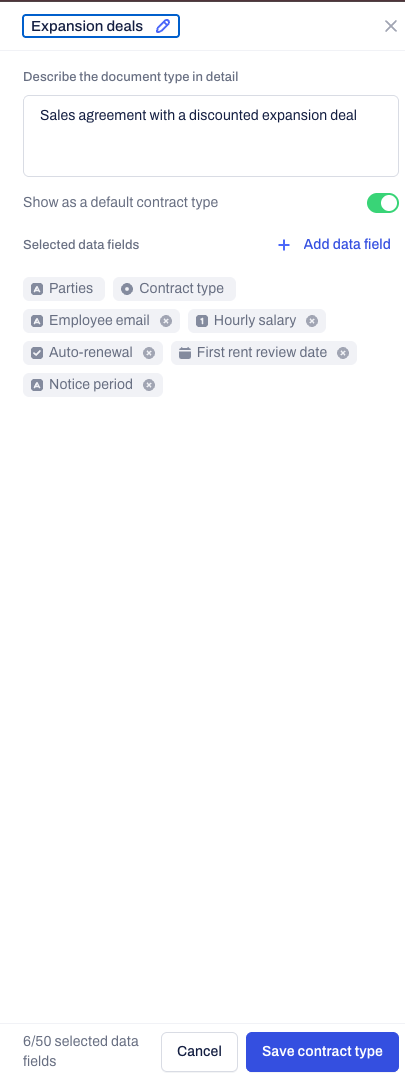
Modify the selected data fields by clicking + Add data field, edit the extraction instructions in the description box, or click the pencil icon to rename the custom contract type.
Enable the Show as a default contract type option to make this AI contract type a standard base for your company users. It will appear at the top of the AI upload module and will be labeled as “Default” under the type column on the AI detection contract types page.
Click the blue Save contract type button to complete the applied changes.
Any edits you make to the AI contract types instantly apply and only affect your specific company account.
Frequently asked questions
Why am I not able to save my custom contract type?
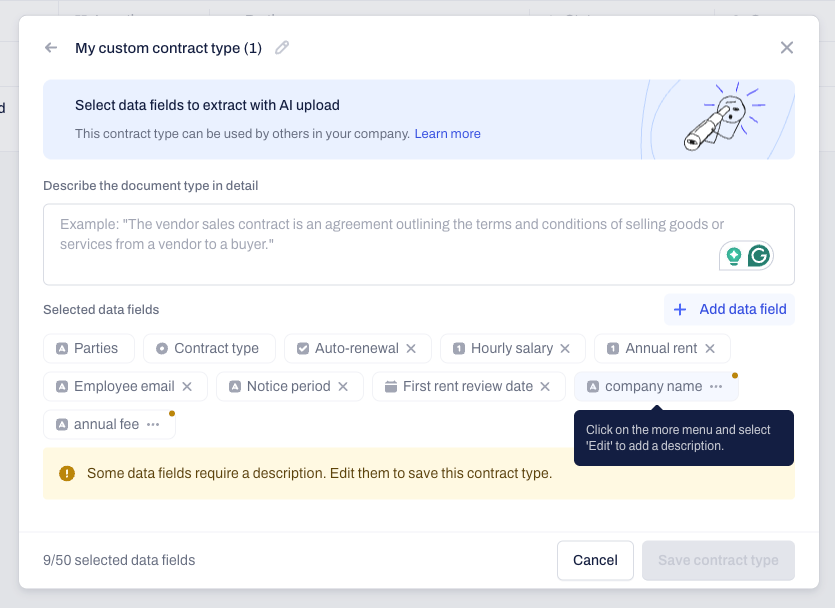
If you have selected data fields that are missing a description, you will get a notification that your contract type cannot be created until you have edited and added the needed description to the fields marked with a yellow dot under the Selected data fields section of the module.
Can I stop the upload while the AI is processing the uploaded files?
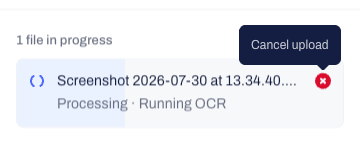
If the AI makes a mistake or you accidentally upload the wrong file, you can cancel the upload of each selected file individually while it is still processing.
Note: Your limitation for the number of files you can select within the AI upload module is based on your specific plan's AI import limit. If you have reached your limit and need assistance, please contact our Support team or reach out to your Customer Success Manager to explore the options for an upgrade.
Why am I not able to see the AI detection contract types option?
AI detection contract types is a premium feature that is not included in all plans. If you click on your profile icon in the top right corner and do not see AI detection contract types listed under the Company section from the menu, your current plan does not include this feature. To add this functionality to your account, please reach out to your Customer Success Manager.
Alternatively, you do not have user permissions to Manage AI upload contract type enabled on your account. Ask your company administrator for assistance.

What happens if I delete a contract type from the AI detection contract types page?
Deleting a contract type is a permanent action that affects the entire company. If you click the three-dot menu next to a contract type and select Delete, that specific contract type will be permanently removed for all users in your company account. They will no longer be able to select it from the list when uploading contracts with AI or see it on the AI detection contract types page.
Was this article helpful?
That’s Great!
Thank you for your feedback
Sorry! We couldn't be helpful
Thank you for your feedback
Feedback sent
We appreciate your effort and will try to fix the article