User Groups help you manage document access rights and permissions at scale. You can organize users into groups and manage their access centrally.
User Groups are available on a dedicated sub-page within your Company settings and can be managed by Admin users.
Exploring the New Users and User Groups Page in Contractbook ?
What are User Groups?
User Groups allow you to:
Add users from your company to one or multiple groups
Grant access rights to contract spaces and template spaces at the group level
Let users automatically inherit permissions from their assigned groups
This creates a powerful layer of abstraction between individual users and access rights. Rather than managing permissions user by user, you manage them by role or function through groups.
Why use User Groups?
User Groups make permission management significantly more efficient.
Onboarding made simple
When a new employee joins, simply add them to the relevant User Groups. They instantly receive all necessary access rights without manual configuration.
Offboarding without risk
When an employee leaves, removing them from the company or from specific groups immediately removes their inherited access - reducing the risk of forgotten permissions.
Less manual work, fewer errors
Managing access through groups minimizes repetitive setup and reduces the chance of inconsistent document permissions across your company users.
Fully compatible with SCIM & IAM integrations
User Groups are fully compatible with SCIM integrations and Identity & Access Management (IAM) systems, such as:
Microsoft Entra ID
Okta
If you use an IAM system, you can provision User Groups directly into Contractbook. Since User Groups are a widely adopted concept in IAM tools, this ensures a seamless and flexible access management setup across systems.
Replaces Teams with a more scalable structure
User Groups fully replace the previous Teams concept and introduce a clear, scalable structure:
Company → User Groups → Access Rights
This structure makes it easier to manage growth, role changes, and organizational complexity over time.
Built for future expansion
User Groups are designed as a foundational layer in your permission setup and can be extended in the future to manage:
Company permissions
Task assignments (especially critical when employees leave)
Automations
Contract Views
Additional permission-based features
Managing Permissions with User Groups
Efficiency is key when managing a growing team. Instead of adding individual users to every Contract or Template space, you can now use User Groups to manage access and permissions at scale.
With User Groups, you can group members by department, seniority, or project and grant them collective access to specific Spaces in just a few clicks.
Note: To create and manage Users and User Groups, your profile must have the "Manage users" permission enabled.
Inviting Users to Contractbook
To initiate your user groups setup, start by adding new users to your company.
- Click on your name/profile in the top right corner and select Users from the menu.

- Click on the "Invite new users" button. You can invite individual users only or multiple users in bulk:

- You can see the overview of all invited users, who will receive an email invitation to join your company:

- You can also resend or revoke already sent invitations from the Users page:

- Once an email invitation is accepted, you will be able to see all active users in the overview. You can now assign them to User Groups.

Creating your User Groups
Navigate to User Groups: Click on your name/profile in the top right corner and select User Groups from the dropdown menu:

Create a New Group: Click on the "Create Group" button.
Name and Customize: Enter a name for your group. You can also assign a specific color to each group.
Add Members: Click on the "Add Members" button. Here you will see a list of all users who accepted your invitation to join the company.

Managing contract access for User Groups
You can manage access to all your company's agreements with the use of User Groups.
This applies to both Contract and Template Spaces.

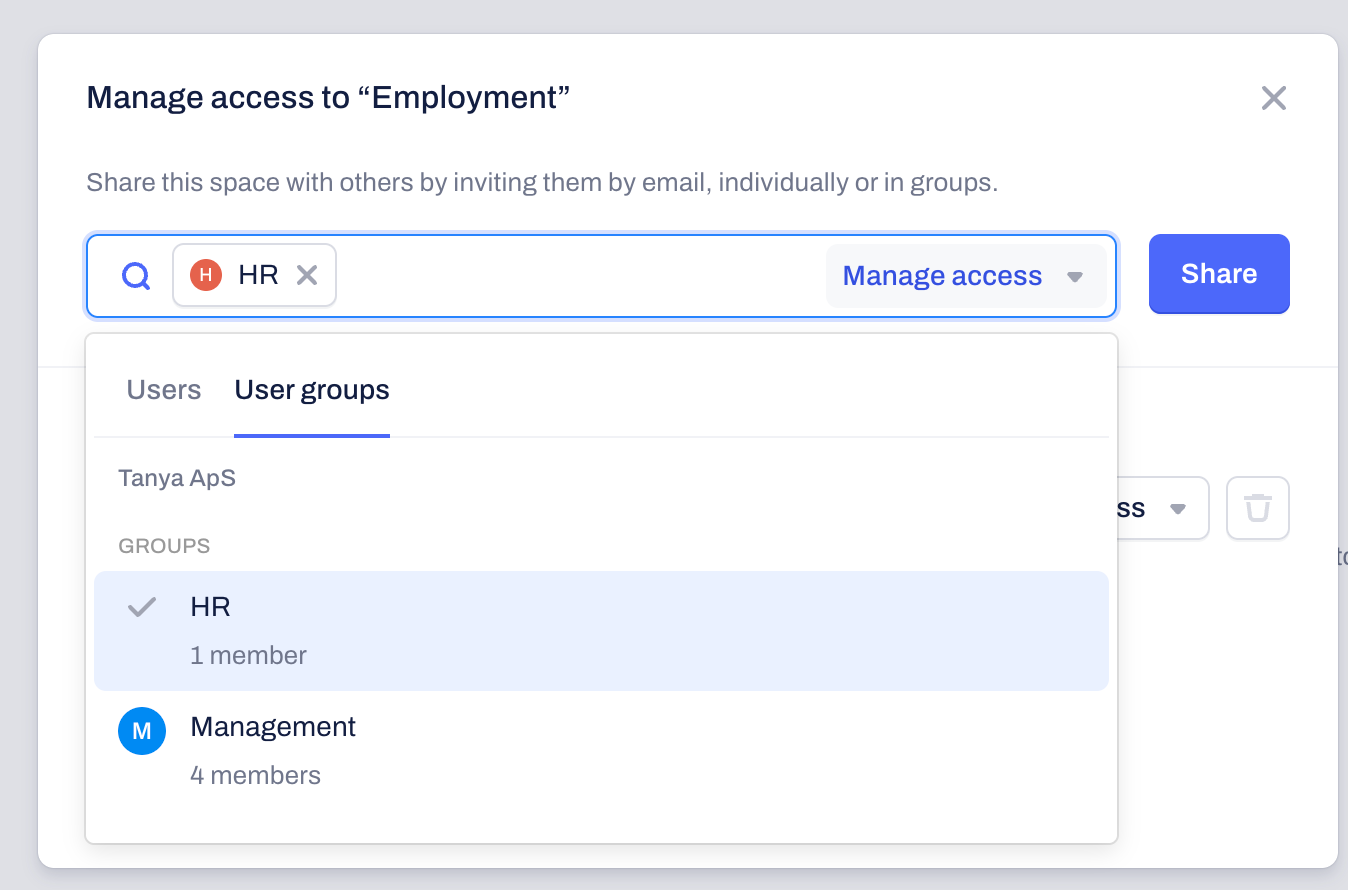
Open a Space: Navigate to the Spaces tab and select the specific Space you want to share with any of your existing User Groups.
Manage Access: Click on the Manage Access button.
Add the User Group: Instead of typing individual names, click on the User Groups tab. Choose the group that needs access to the Space from the available company groups.
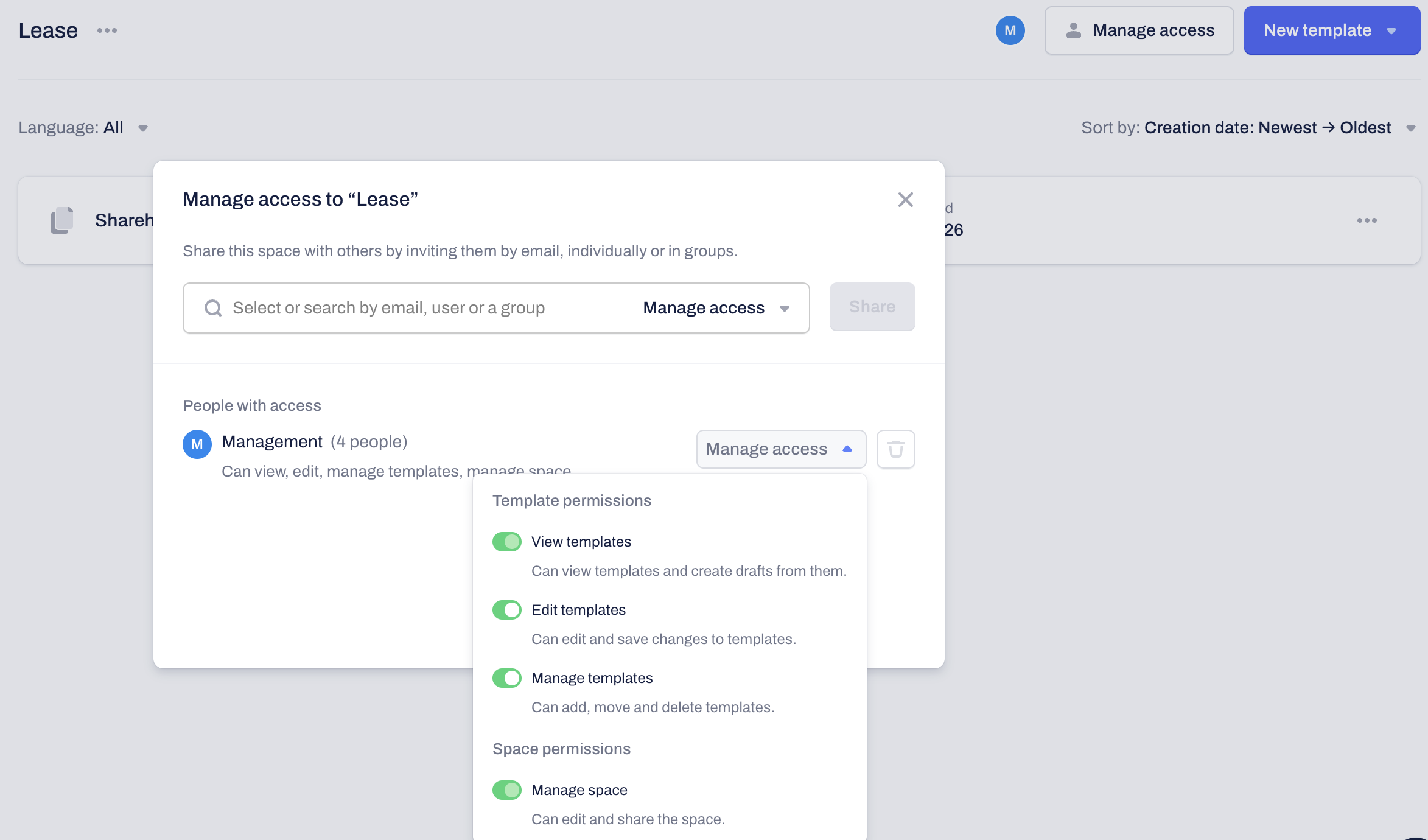
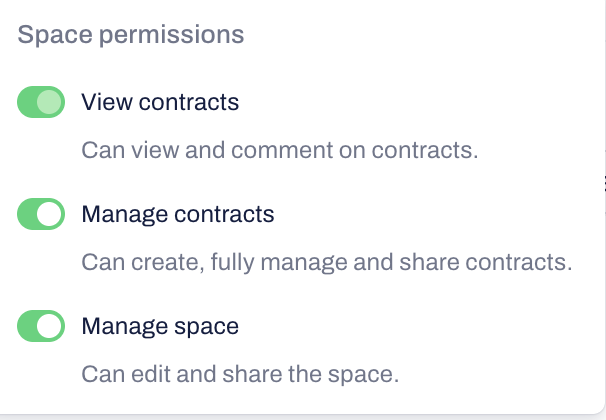
Set Permission Levels: You can choose between:
Managing access in Contract Spaces
View contracts: Can view and add comments to contracts.
Manage contracts: Can create, fully manage, and share contracts.
Manage space: Can edit and share the Contract space.
Managing access in Template Spaces
When you manage access to Template Spaces, you can assign User Groups with the following rights:
View templates: Can view templates and create drafts from them.
Edit templates: Can edit and save changes to templates.
Manage templates: Can add, move, and delete templates.
Manage space: Can edit and share the Template space.
Managing granular permissions
If specific company users require additional or fewer permissions compared to the access rights you have given the User group they belong to, you can assign these to their individual user accounts.
To do this, go to Users from the dropdown menu instead of User Groups, locate the user, and update their specific permissions.

Frequently Asked Questions
Can I change a group's permission level later? Yes. You can return to the "Manage Access" settings of any Space and adjust the permission level for the entire group at once.
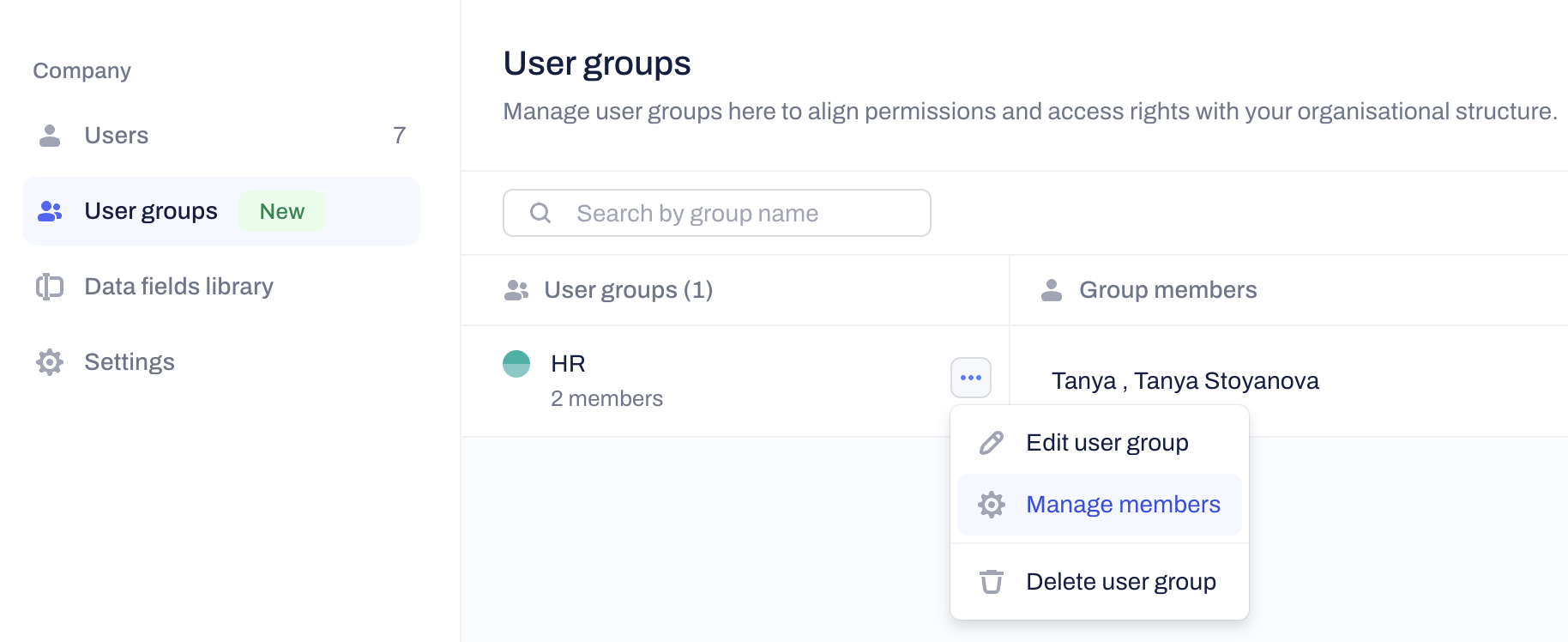
Deleting members of User Groups
You can remove existing company users from the User Group they are assigned to from the "Manage members" option within the User Groups menu:
What happens if I remove someone from a User Group?
If a user is removed from a group, they will lose the access that was granted to them through the User group menu.
If you have added the user to a specific Contract or Template Space, their access rights to it will remain unchanged. 
Was this article helpful?
That’s Great!
Thank you for your feedback
Sorry! We couldn't be helpful
Thank you for your feedback
Feedback sent
We appreciate your effort and will try to fix the article